
Trim video online
Cut the start and end of a video, or remove any part in the middle. Trimming runs in your browser, so your video stays on your computer.
Opens in KlikFrame, our free video editor that runs in your browser.
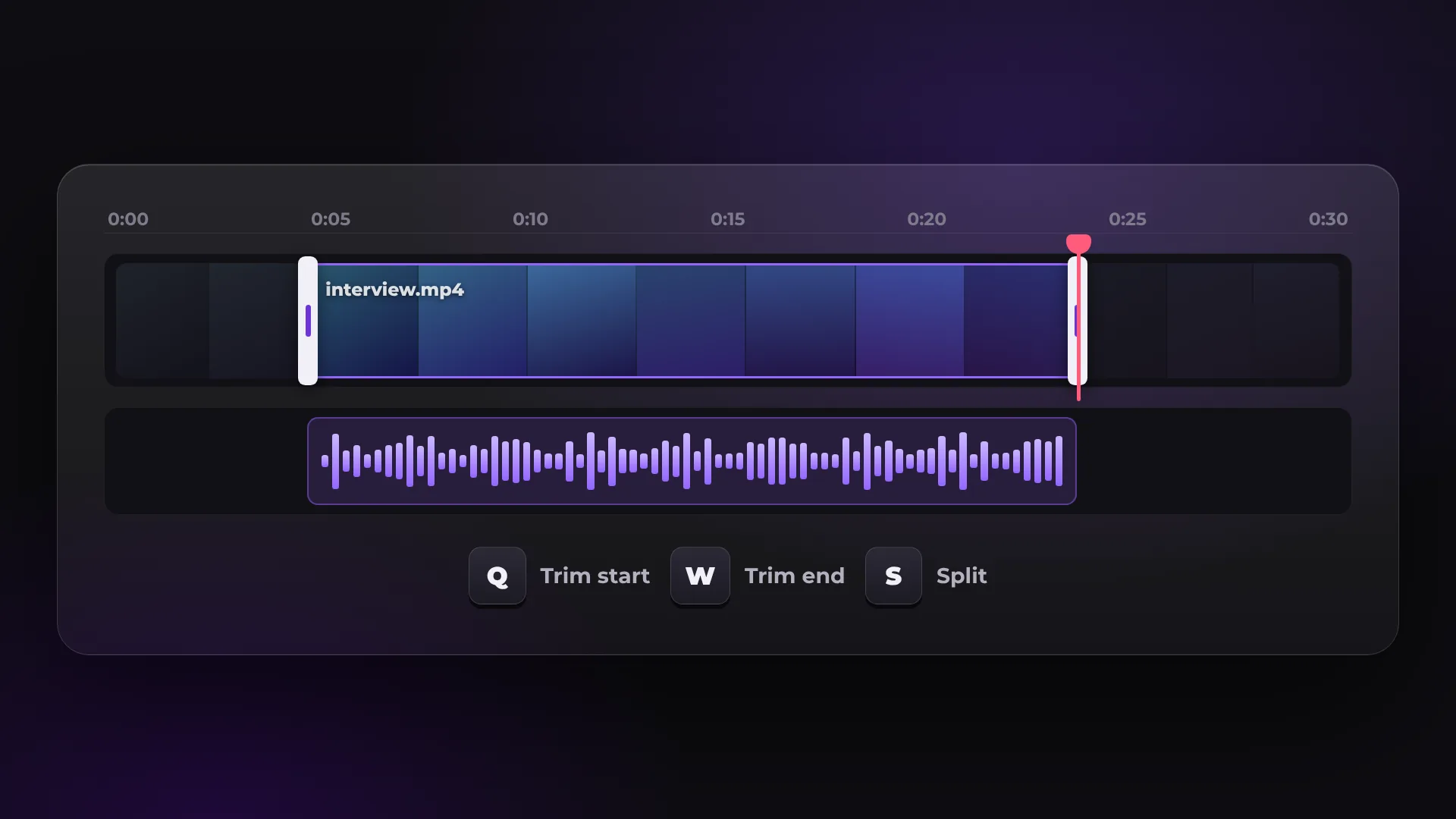
How to trim a video
- 1
Add your video
Click Trim a video and drop the file onto the timeline.
- 2
Cut what you do not need
Drag either edge of the clip, or move the playhead and press Q to trim the start or W to trim the end.
- 3
Export
Click Export. Only the part you kept is saved, as an MP4.
Ways to cut a video
Use the method that fits the cut. The keys below are the default KlikFrame shortcuts.
Method | How | Shortcut |
|---|---|---|
Trim the start | Move the playhead and remove everything before it | Q |
Trim the end | Move the playhead and remove everything after it | W |
Split | Cut the clip in two at the playhead | S or Ctrl/Cmd + B |
Remove a part | Split at both ends of the part, select it and delete it | Shift + Delete |
Prefer other keys? In Keyboard shortcuts you can switch to the Adobe Premiere or DaVinci Resolve layout. Cutting pauses from a talk? Remove silences does it for you.
Good to know
Gaps close by themselves
Trims and deletes close the gap, so the clips after the cut move up.
Clean audio cuts
Every audio cut gets a very short fade, so it does not click.
Export one part only
Mark In and Out points and export just that range.
Undo any cut
Press Ctrl/Cmd + Z to go back a step.
Questions about trimming video
Is it free to trim a video?
Yes. There is no watermark and no account. You add an email address once, before your first export.
Is my video uploaded anywhere?
No. KlikFrame reads and exports the video in your browser, on your own computer.
Does trimming lower the quality?
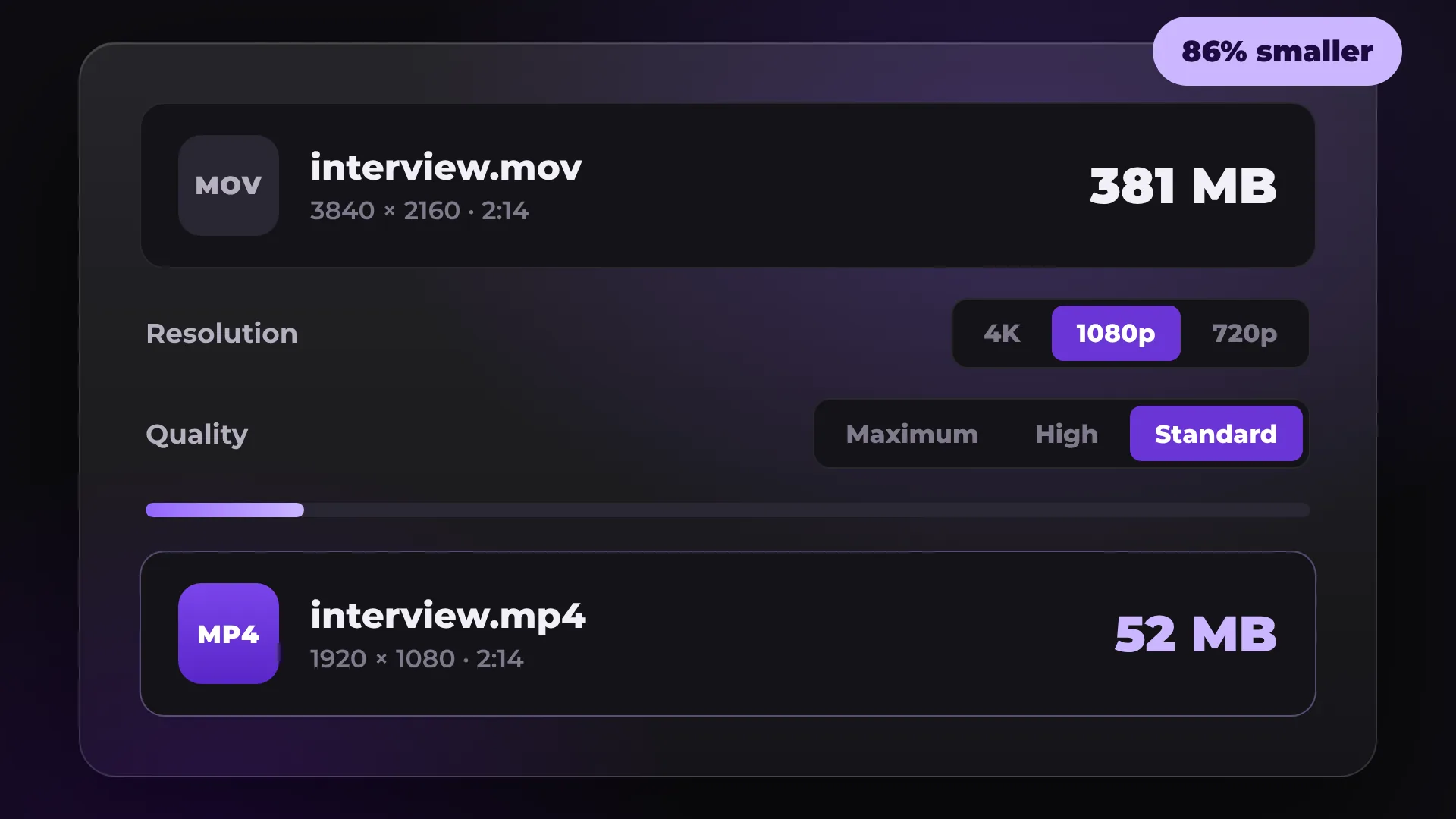
KlikFrame exports a new MP4, so the video is encoded again. At the original resolution and High quality, the difference is hard to see.
Can I cut out a part in the middle?
Yes. Split at the start and end of the part, select it and press Shift + Delete. The gap closes by itself.
Your next video starts here
Open the editor and drop in your footage. Nothing to install.