
KlikSync
KlikSync is a one-click multicam audio synchronization tool for video editors. Import your XML timeline, click Synchronize, and get perfectly synced clips in minutes — no manual alignment needed.
Getting Started
Step 1 — Organize Your Timeline
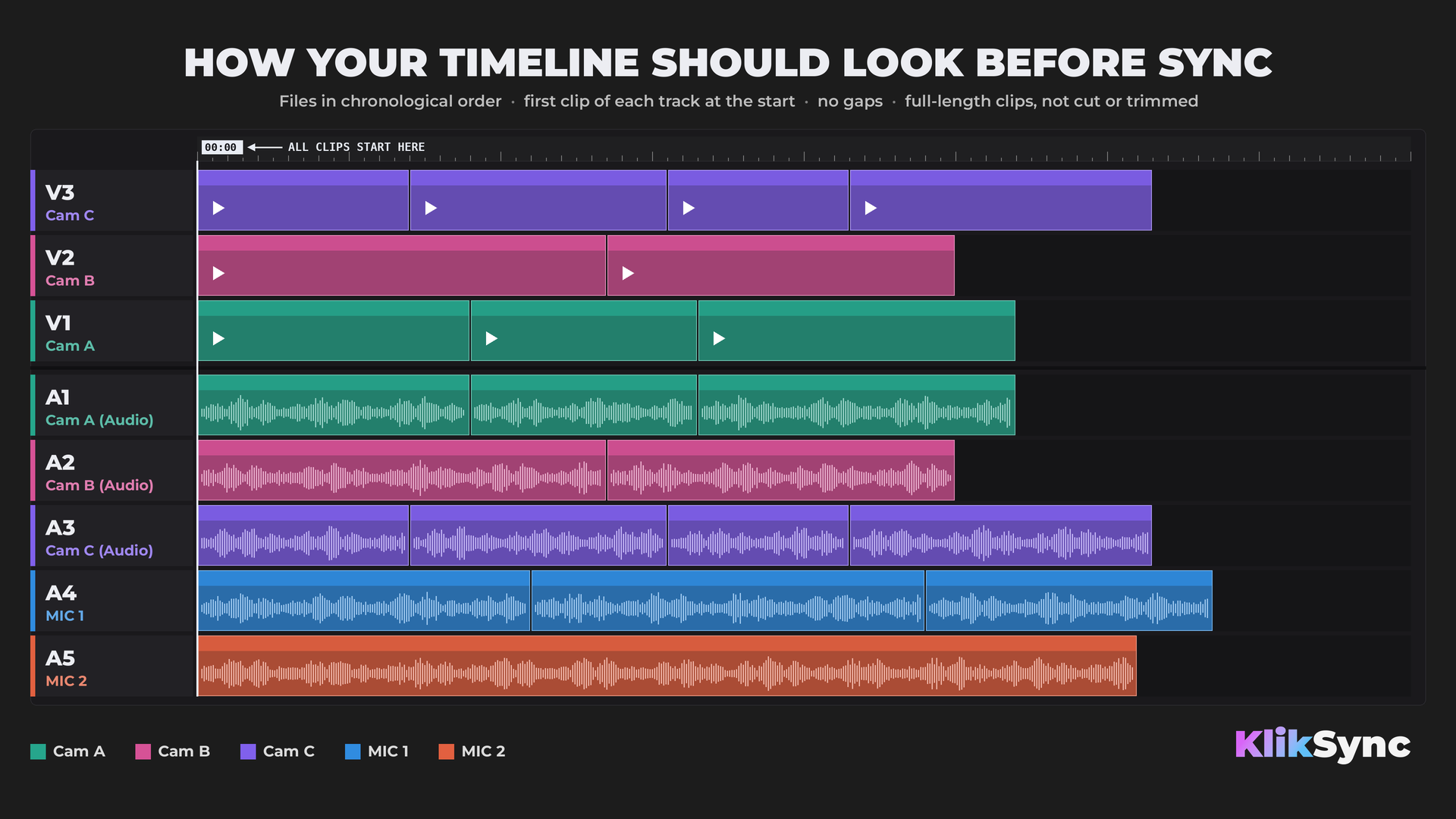
Before exporting XML, organize your timeline following this rule:
One source = one track, with clips in chronological order within each track.
Each camera's video and audio must be on matching track numbers:
- Video Track 1: Camera A → Audio Track 1: Camera A audio
- Video Track 2: Camera B → Audio Track 2: Camera B audio
- Video Track 3: Camera C → Audio Track 3: Camera C audio
Audio-only sources (standalone microphones, recorders) go on the lowest available audio tracks, below all video-paired audio tracks:
- Audio Track 4: Audio-only source
- Audio Track 5: Audio-only source
Do not mix different sources on the same track.
Use original files, not proxies
Build your sequence from the original files straight from the camera or recorder. They carry information KlikSync uses to place clips faster and more accurately, and they keep the original audio with all its microphone channels. Converted and proxy files carry less of it.
If you need proxies, create them after syncing. Proxies follow the original clips, so your synced timeline stays in sync.
Step 2 — Export XML
Adobe Premiere: File → Export → Final Cut Pro XML
DaVinci Resolve: File → Export AAF, EDL, XML → Final Cut Pro XML
Step 3 — Sync in KlikSync
- Launch KlikSync
- Import your XML file (drag & drop or Browse Files)
- Click Synchronize
- Wait for sync to complete
- Review the result on the timeline
- Optionally turn on Remove gaps to close the empty time between recordings
- Save the synchronized XML
Step 4 — Import Back to Your NLE
Adobe Premiere: File → Import → select synced XML
DaVinci Resolve: File → Import AAF, EDL, XML → select synced XML
Your clips are now perfectly synced.
The Interface
Start screen
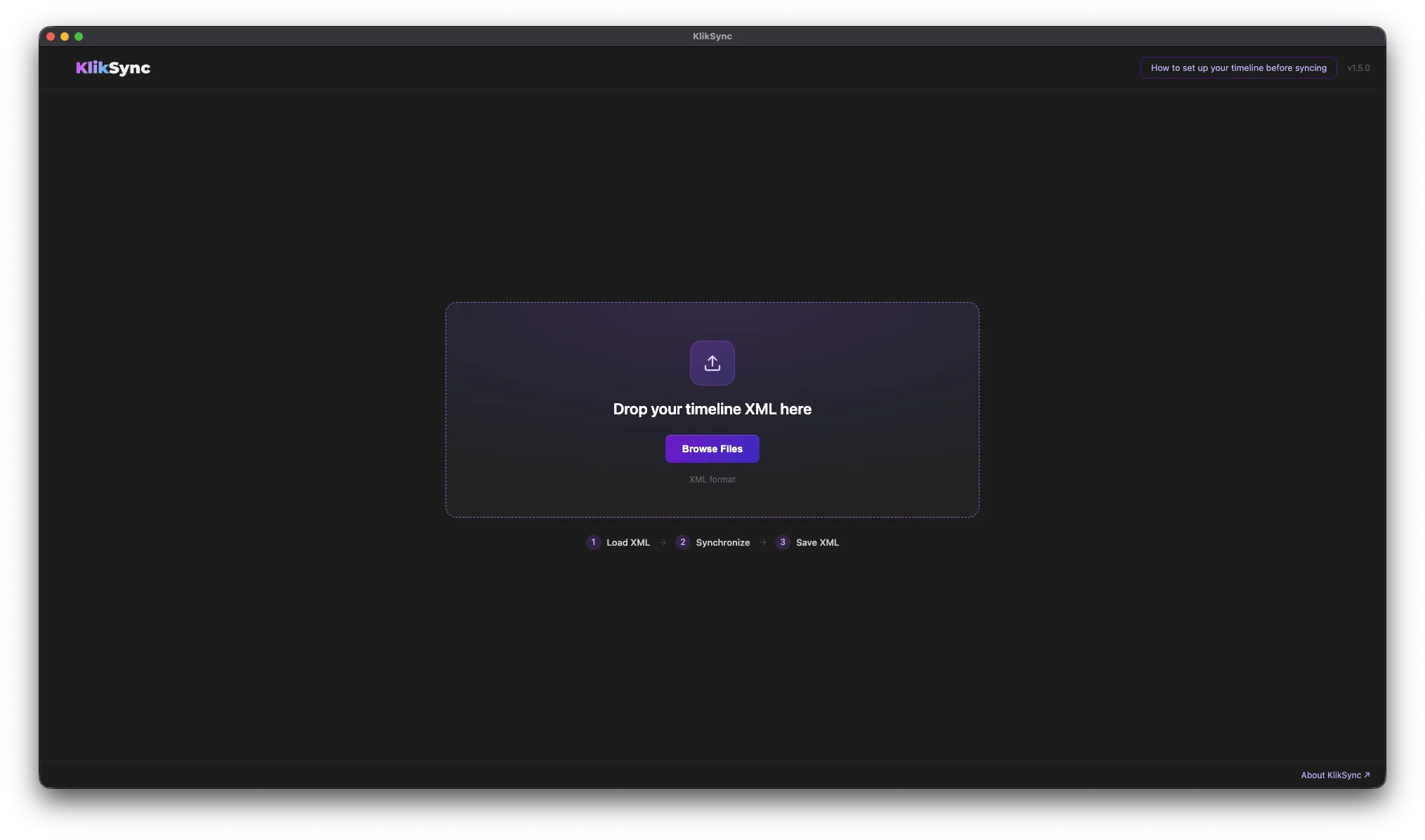
Drop your timeline XML into the window, or click Browse Files. The three steps below the drop area show the whole process: Load XML → Synchronize → Save XML. If you haven't prepared your timeline yet, click How to set up your timeline before syncing in the top right corner.
Before syncing
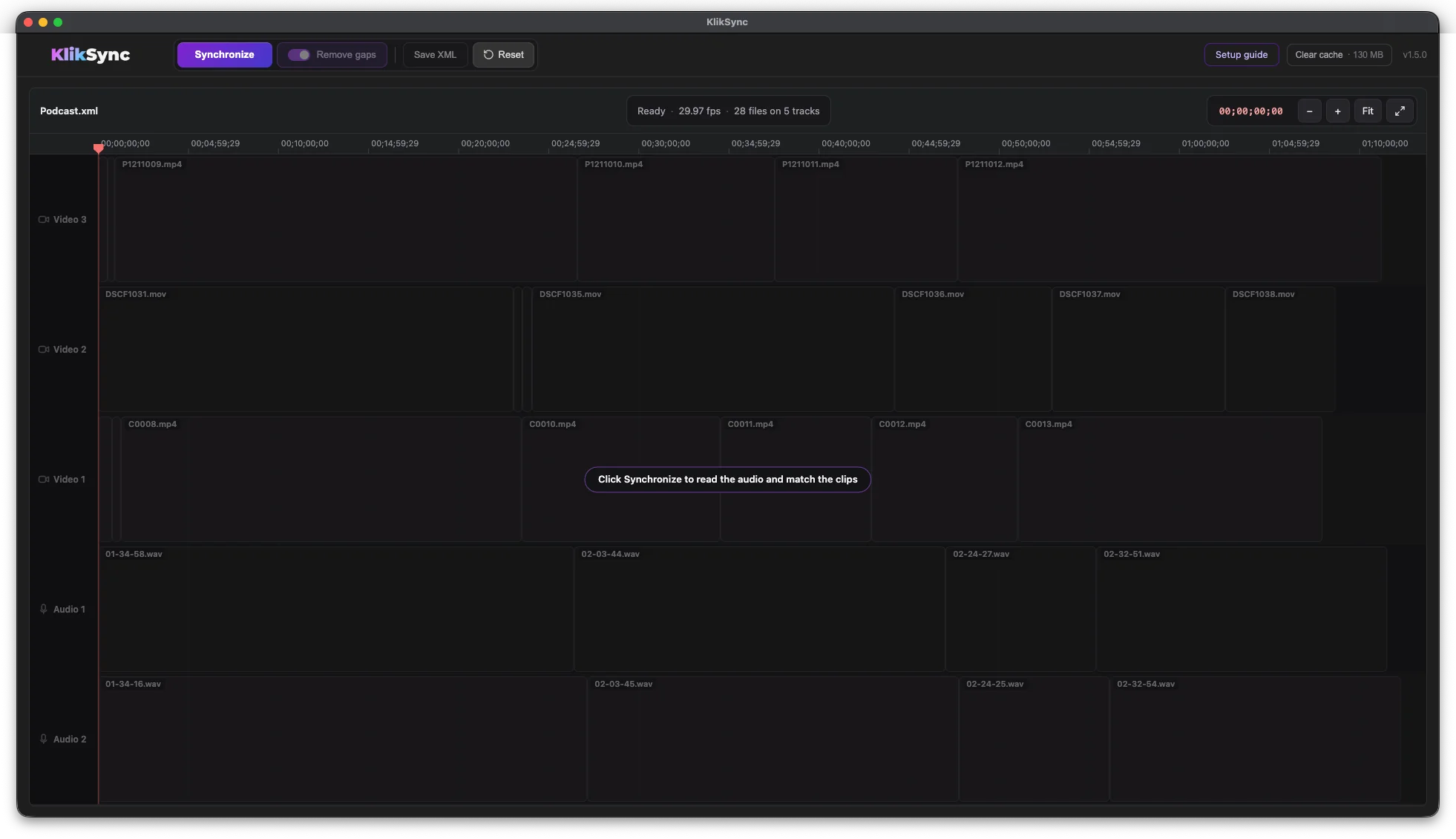
As soon as the XML is loaded, KlikSync shows your timeline exactly as it was exported: every track, every clip and its file name. The bar at the top shows the frame rate and how many files and tracks were found. If a file can't be found, you'll see it here, before anything is processed.
During syncing
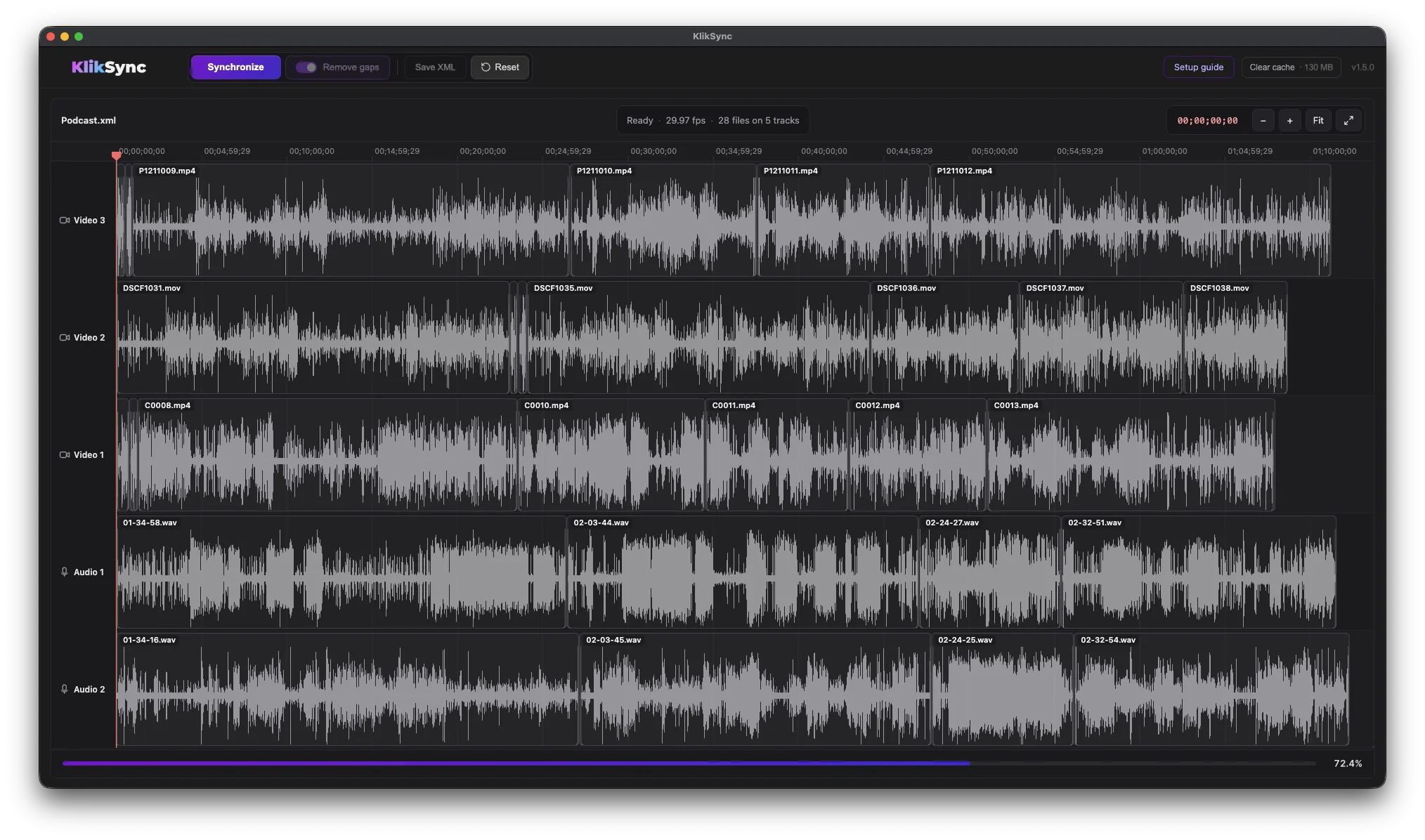
Waveforms appear on each clip as the audio is read, and the progress bar at the bottom shows how far the sync has come. Clips stay where they are until the sync is finished.
After syncing
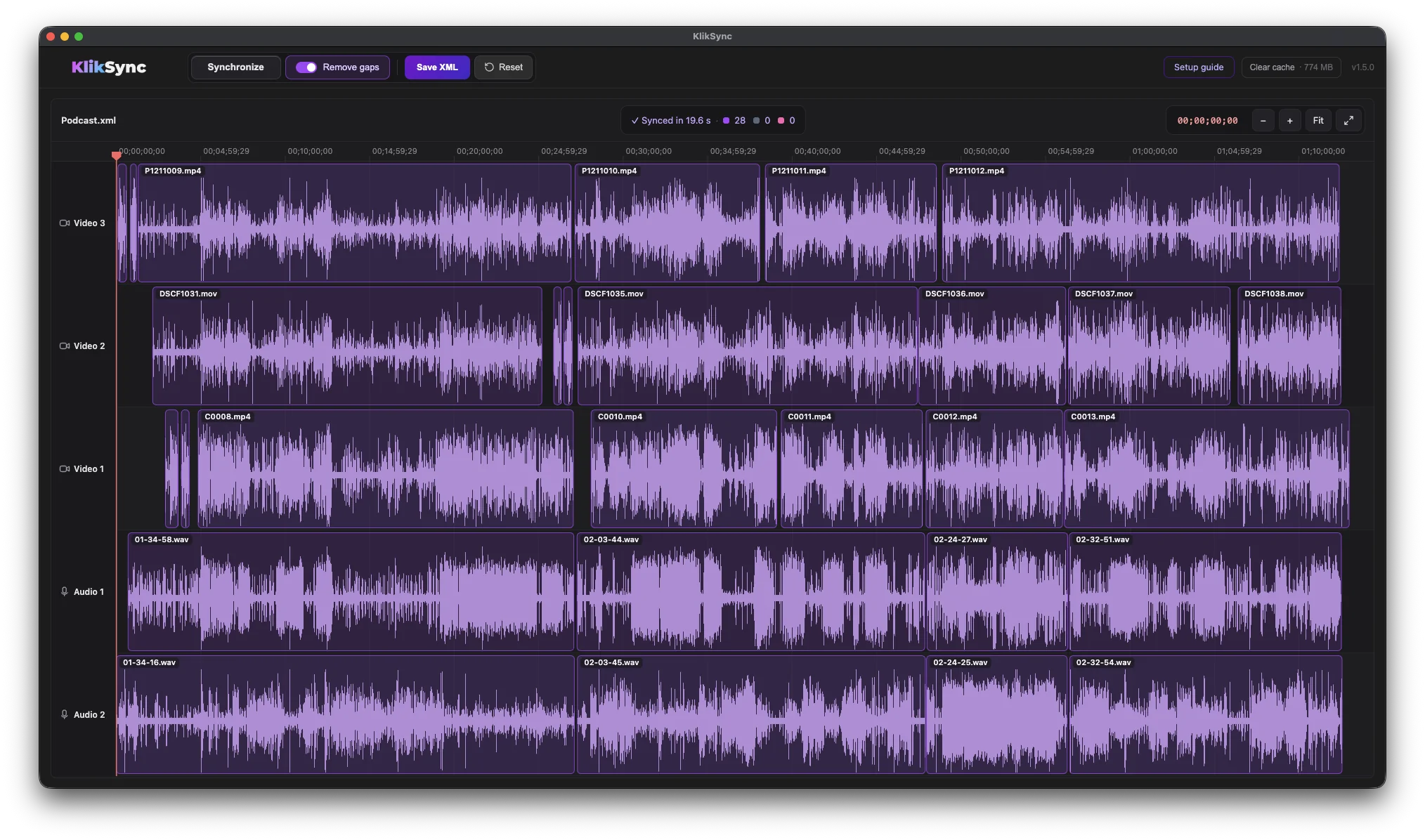
When the sync is finished, the whole timeline is updated at once, with every clip in its synced position. Review the result before saving anything.
Toolbar
- Synchronize: reads the audio and matches the clips.
- Remove gaps: closes the empty time between recordings. Turn it on or off and save again; no new sync is needed.
- Save XML: saves the synced timeline for import into Premiere Pro or DaVinci Resolve.
- Reset: clears the current project so you can load a new XML.
- Setup guide: opens the guide on preparing your timeline.
- Clear cache: frees the disk space used by audio analysis. The current size is shown next to the button.
Sync results
After syncing, the status bar shows how long the sync took and how many clips ended up in each group, each shown in its own color:
- Purple: synced by sound.
- Blue-gray: placed by recording time.
- Rose: not synced. These clips are also labeled Rose in the exported XML, so you can find them in your editor right away.
Navigation
Use – and + to zoom, Fit to show the whole timeline, and the expand button for full screen. Click the timecode to copy it and paste it straight into your editor.
Watch It In Action
In this video: 100+ files from a real multicam shoot — multiple cameras, multiple playback tracks, no timecode. Every file synced automatically, in one click.
Supported Formats
Video
MP4, MOV, MKV, AVI, MXF, MTS, M2TS, TS, CRM, R3D, BRAW
Audio
WAV, BWF, AIFF, MP3, AAC, M4A, FLAC, OGG, AC3
Timeline XML
Final Cut Pro XML (exported from Adobe Premiere or DaVinci Resolve)
System Requirements
macOS
- macOS 12 (Monterey) or later
- Apple Silicon (M1, M2, M3, M4, or newer) — Intel Macs are not supported
- Minimum 8 GB RAM (16 GB or more recommended for large projects)
Windows
- Windows 10 or Windows 11 (64-bit)
- Minimum 8 GB RAM (16 GB or more recommended for large projects)
- Multi-core CPU (more cores = faster sync)
License & Updates
KlikSync is a one-time purchase. Your license is permanent — once you buy it, you own it forever.
All future updates are free. New versions will be published on this page — simply download and install the latest version at any time.
We are committed to maintaining and improving KlikSync. However, we reserve the right to discontinue development at any time, with no obligation to provide further updates or support.
Updating KlikSync
Already own KlikSync? All updates are free. Just log in with the email you purchased with to access your account and download the latest version.
Log in to get the latest version →
New here? Get KlikSync →
Refund Policy
KlikSync is a one-time purchase digital product — no subscription, no recurring charges. We stand behind it with a 7-day refund window and real human support over email.
7-Day Refund Window
You have 7 days from the date of purchase to request a refund for a genuine issue with the software. We'll always try to resolve the problem first; if KlikSync fails to correctly sync footage that was prepared according to the documentation and we can't fix it, you'll receive a full refund.
After 7 days from purchase, refunds are no longer available. This applies to all purchases regardless of whether the software has been downloaded or used.
How to Request a Refund
Send an email to office@video-editor.com with your order number and a short description of the issue. We respond within 24 hours on business days.
Before processing a refund, we'll do our best to resolve the problem. KlikSync has specific requirements for how footage needs to be prepared and imported — most issues reported as “not working” are resolved once the setup is correct.
Before You Request a Refund — Check This First
KlikSync works with multicam footage exported as XML from Adobe Premiere or DaVinci Resolve. If the sync result isn't what you expected, the most common cause is footage that wasn't prepared according to the required workflow.
Before reaching out for a refund, go through the step-by-step setup guide in the documentation. It covers exactly how to prepare your files, export the XML, and import the sync result back into your NLE. Following this guide resolves the majority of issues.
If you've gone through the documentation and the software still isn't working as expected — contact us. That's what the support window is for.
What We Can and Can't Resolve
We can help with: sync errors, XML import issues, footage compatibility questions, and anything related to how KlikSync processes your files.
Our 7-day money-back guarantee covers genuine problems with the software: if KlikSync fails to correctly sync footage that has been prepared according to the documentation, and we're unable to resolve it, you'll receive a full refund within 7 days of purchase.
The guarantee does not cover:
- Incompatible operating systems (KlikSync requires Windows 10/11 x64, or macOS 12+ on Apple Silicon — Intel Macs are not supported; check before purchasing).
- Issues caused by footage that doesn't meet the minimum requirements outlined in the documentation.
- Change of mind, or deciding the workflow doesn't suit you after purchase. KlikSync requires a sorted, audio-based timeline — the documentation describes exactly what's needed, so please read it before buying to confirm it fits your workflow.
A refund requires a demonstrable issue with KlikSync on correctly prepared footage — not a preference for a different workflow.
Refund Eligibility
- Demonstrable issue with KlikSync on correctly prepared footage, within 7 days, unresolved after support — eligible.
- Request after 7 days — not eligible.
- Incompatible operating system — not eligible. Check system requirements before purchase.
- Footage not prepared per the documentation — not eligible.
- Change of mind, or workflow preference — not eligible.
FAQ
How many clips can KlikSync sync at once?
There is no hard limit. KlikSync is designed to handle large multicam projects. Performance scales with available CPU and RAM.
Does KlikSync work with proxy files?
Yes. KlikSync reads audio from whichever files are referenced in your XML. For the best speed and precision, though, sync the original camera files first. If you need proxies, create them afterwards. With proxies only, sync still works correctly — it just takes longer, and clips with no sound at all will be placed at the end of the timeline.
Does KlikSync support RED camera footage?
Yes. R3D files from RED cameras are fully supported.
My clips didn't sync correctly. What should I check?
Make sure each source is on its own dedicated track and clips are in chronological order. Mixing sources on the same track is the most common cause of incorrect sync. On each track, the first clip must start at the very beginning of the timeline, with the following clips back-to-back and no gaps. Don't trim clips before syncing — every clip stays at its full original duration.
Does KlikSync modify my original files?
No. KlikSync only modifies the XML file. Your original media files are never touched.
Which NLEs are supported?
Adobe Premiere and DaVinci Resolve. Any NLE that supports Final Cut Pro XML import/export should work.
Does my camera's clock need to be correct?
No. A camera set to the wrong time zone or the wrong date still syncs correctly. What matters is only that the clock is running.
What if my files carry no usable information from the camera?
That's fine — KlikSync doesn't depend on it. It syncs by audio alone and reaches the same result; the information from your files is simply a shortcut that gets it there sooner when it's available. Clips with no sound at all are placed at the end of the timeline.
Support
Email: office@video-editor.com
Website: https://www.video-editor.com/kliksync
© 2026 Video Editor. All rights reserved.
Changelog
A new workspace and sharper sync
KlikSync now shows your whole timeline as it works. You see every file before syncing, watch the waveforms appear as the audio is read, and review the result before you save anything.
New
- Timeline view. Clips are drawn on their tracks with waveforms, with zoom, a playhead and clickable timecode you can copy straight into your editor.
- Clear results at a glance. Clips synced by sound, placed by recording time, or not synced are shown in different colors. Clips that need a look are listed in a "Needs attention" panel.
- Remove gaps. Closes the empty time between recordings. You can save again with or without gaps without running the sync again.
- Clips without an audio match are labelled Rose in the exported XML.
Improved
- Higher precision on multi-day shoots, long recordings and clips that only partly overlap.
- Faster syncing, especially on projects with long recordings.
- Much smaller installer on Windows.
Fixed
- Media stored on a network drive or NAS is now found when the XML refers to it by server address. Previously every clip could be reported as missing.
- When media can't be found, KlikSync now explains why and what to do.
Windows and macOS are both on v1.5.0 and share the same engine and the same results.
Faster and more precise syncing
KlikSync now uses information stored inside your original camera files to work faster, while audio still confirms every single placement. On projects shot with original files, sync is several times faster than before.
New
- Timelines are laid out by real recording time, so the gaps between clips reflect what actually happened on set.
- Clips that can't be confirmed are placed at the end of the timeline, where they're easy to find and position by hand.
- Clock resets mid-shoot — battery changes, new cards, wrong dates — no longer throw the sync off.
- Proxy and converted files are recognized as such, so their conversion date can never pull clips to the wrong place.
Improved
- Better precision on weak audio. Clips recorded at a distance or in noisy conditions are now matched with a second, independent measurement.
- Faster on large and long projects. Empty periods between recordings are skipped, and several heavy steps were rebuilt.
- Music and playback projects. Repeated sections, such as the same song appearing several times, are now recognized and resolved correctly instead of being matched to the wrong take.
Fixed
- Clips whose timeline name differs from the media file name (proxies, renamed clips) now receive their synced position. Previously they could stay at the start of the timeline.
- Various stability and timing improvements on Windows and macOS.
Windows and macOS are both on v1.4.0 and share the same engine and the same results.
Compatibility
- Updated for macOS 27. KlikSync is now fully compatible with the latest version of macOS.
- No changes to the synchronization engine — results are identical to v1.3.2.
If you are running macOS 27, install this version.
Much faster syncing
Sync now runs around three times faster on average, and on some projects more than six times faster. Nothing about how clips are matched has changed — the results are the same, the work just takes a fraction of the time.
Fixes
- Clips that couldn't be synced now stay at the end of the timeline, where they're easy to find, instead of being moved back into the sequence.
- More reliable clip ordering on projects where several groups of clips are arranged relative to each other.
- A file that can't be read no longer stops the rest of the project from syncing.
New
- Save Diagnostic Report in the Help menu. If a sync goes wrong, this records what happened so we can find the cause — just attach the saved file to an email.
- KlikSync now tells you when a newer version is available.
- Quick link to the timeline setup guide, right above the log.
Bug Fixes
- Fixed a crash that occurred on certain large projects with many short clips.
- Improved synchronization accuracy for long recordings that span multiple recording sessions.
- More reliable clip placement across projects with a wide range of clip lengths and durations.
Improved Synchronization
- Projects with recording breaks now sync correctly, with clips placed in their proper order.
- More accurate handling of clips that share a camera track, keeping them in the right sequence.
- Better rejection of false matches, so unrelated clips are no longer aligned by mistake.
- Improved reliability across a wider range of project types and sizes.
Performance
- Faster processing on a wider range of projects.
- Various stability improvements.
Improved Synchronization Accuracy
- Fixed an issue where clips could be placed at incorrect positions on the timeline in certain project configurations.
- Short audio clips are now handled more reliably during synchronization.
- Files that cannot be automatically matched are now consistently placed at the end of the timeline.
- Significantly improved synchronization accuracy for projects with multiple recording sessions.
Improved Project Compatibility
- Projects with a small number of clips now sync as accurately as large projects.
- Improved reliability for projects where some clips had conflicting match candidates.
- Better handling of clips recorded sequentially on the same camera track.
Performance
- Faster processing on projects where recordings are already well-identified.
- Reduced unnecessary processing time on certain project types.
- Various stability improvements.
- Initial release
- Support for Adobe Premiere and DaVinci Resolve XML
- Multicam sync with unlimited clips
- Support for video formats: MP4, MOV, MKV, AVI, MXF, MTS, M2TS, TS, CRM, R3D.
- Support for audio formats: WAV, BWF, AIFF, MP3, AAC, M4A, FLAC, OGG, AC3