
AI tool · runs on your device
AI voiceover
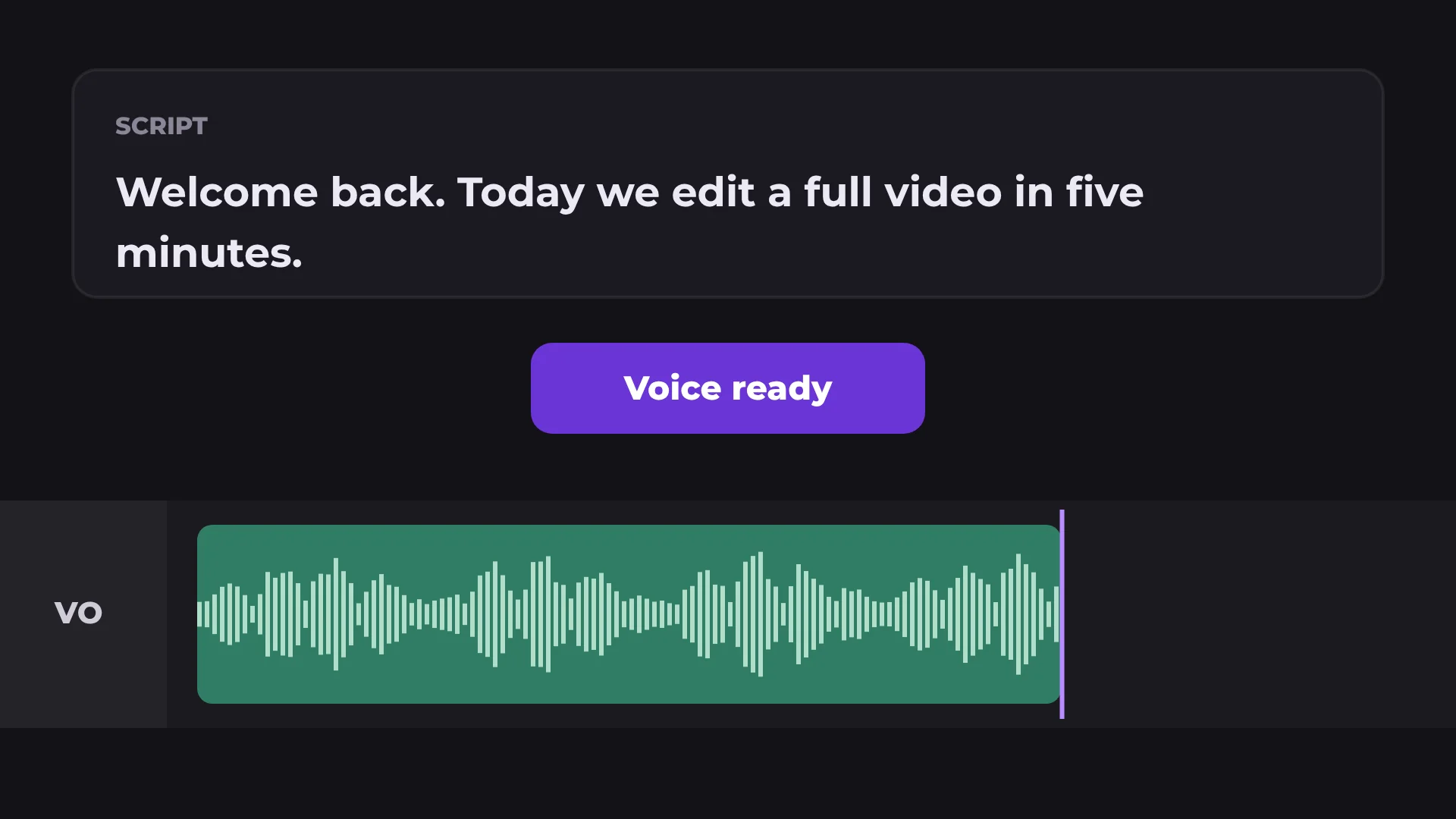
AI voiceover turns a typed script into a natural English voice and places it on the timeline at the playhead.
English
natural voice
3
speeds
0 MB
uploaded
Free
no watermark
How to add an AI voiceover to a video
- 1
Place the playhead
Move the playhead to where the voice should start.
- 2
Type your script
Open AI voiceover, paste or type the text, then pick a voice and speed.
- 3
Generate
The voice is added to the timeline as an audio clip.
What you get
Choose a voice
Pick the voice that fits your video.
Three speeds
Slower, Normal or Faster.
Edit like audio
Trim, fade and set the volume like any clip.
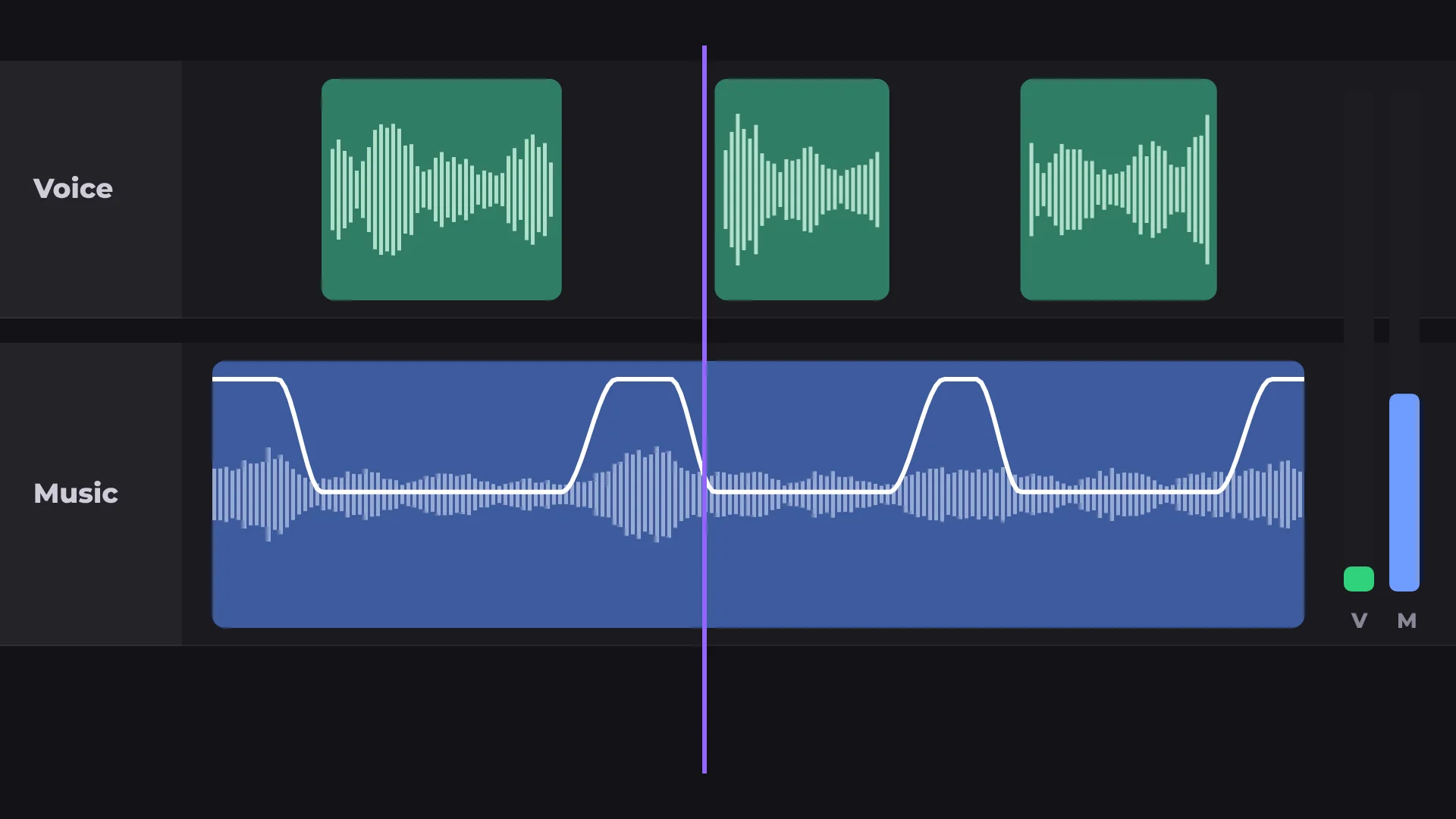
Music ducks under it
Use Auto ducking so the voice stays clear.
Made for
Explainers
Product demos
Slideshows
Social videos
Questions about AI voiceover
Is AI voiceover free?
Yes. Generating voiceovers and exporting are free, with no watermark.
Which languages are available?
AI voiceover speaks English.
Is my script uploaded anywhere?
No. The voice is generated on your computer.
Can I change the speed?
Yes. Choose Slower, Normal or Faster before you generate.
Can music play under the voice?
Yes. Auto ducking lowers the music while the voice plays.
Your next video starts here
Open the editor and drop in your footage. Nothing to install.