
KlikFrame
Free browser video editor with no install, no account and no watermark. Get started, formats, AI tools, system requirements, FAQ and licences.
Getting Started
KlikFrame runs in your web browser. There is nothing to install and no account to create.
- Import. Drag video, audio or images into the Media panel, or click Import.
- Edit. Drag clips onto the timeline, trim and split them, then add titles, music, transitions and effects from the panels.
- Export. Choose a format and resolution, then export. Before your first export, KlikFrame asks once for your email address.
Your project is saved automatically in your browser while you work.
The Interface
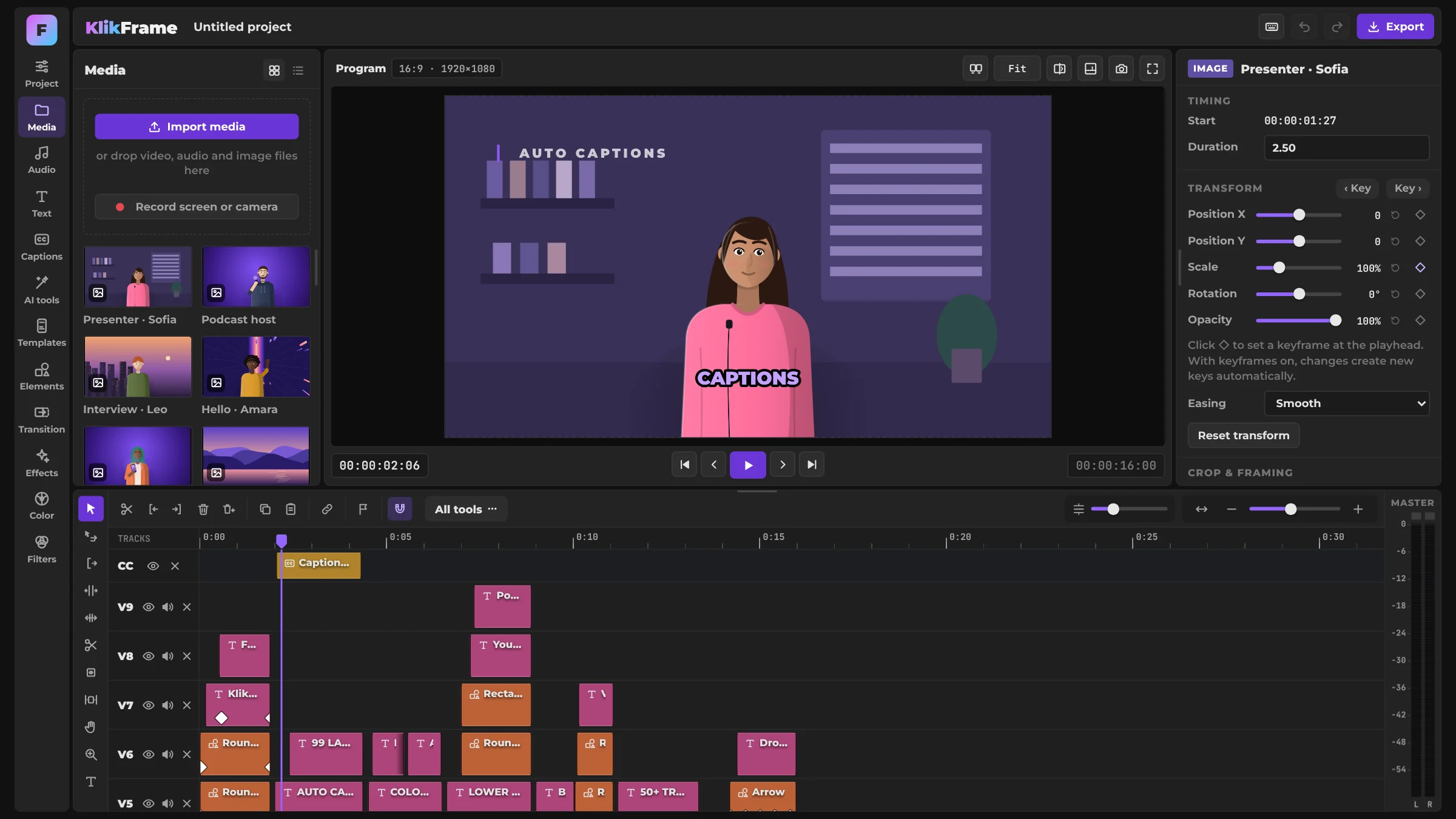
The KlikFrame workspace has four areas: the panels on the left, the viewer in the middle, the inspector on the right and the timeline at the bottom.
Panels
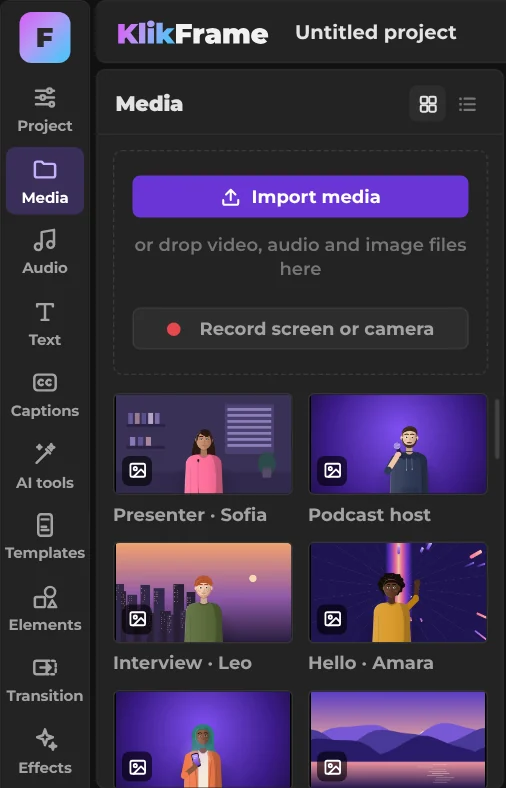
The panel bar on the left opens everything you can add to a video: Media, Audio, Text, Captions, AI tools, Templates, Elements, Transition, Effects, Color and Filters. Project holds your projects and settings. In Media you import files or record your screen or camera.
Viewer
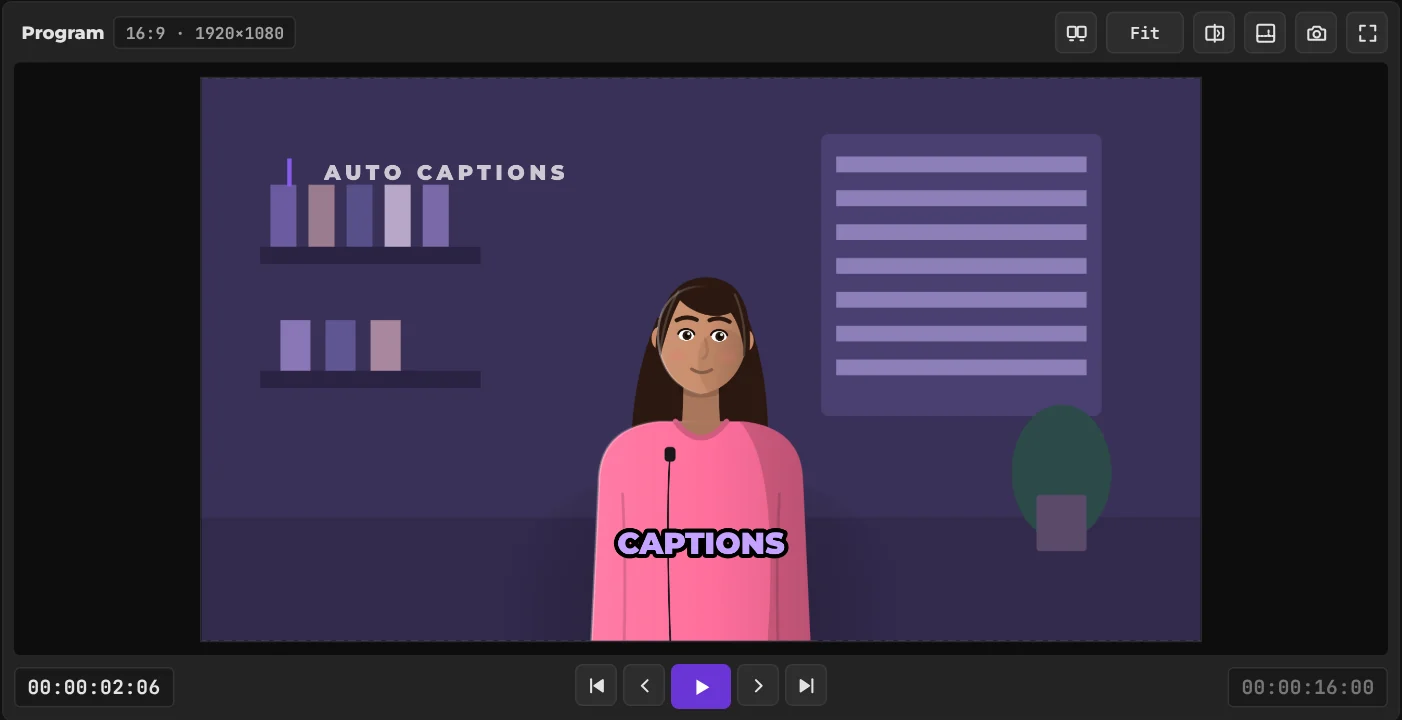
Plays your edit. Below it are playback controls, frame-by-frame stepping, safe zones and fullscreen preview. Select an item to position it directly in the viewer.
Inspector
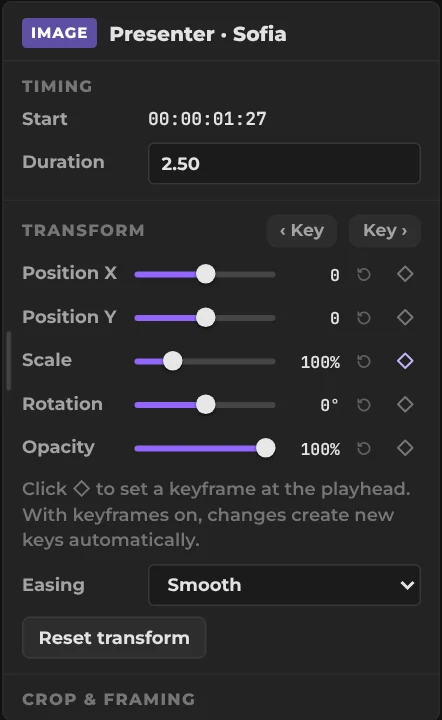
Shows the settings of the selected clip, title or effect. Every change is visible in the viewer right away.
Timeline
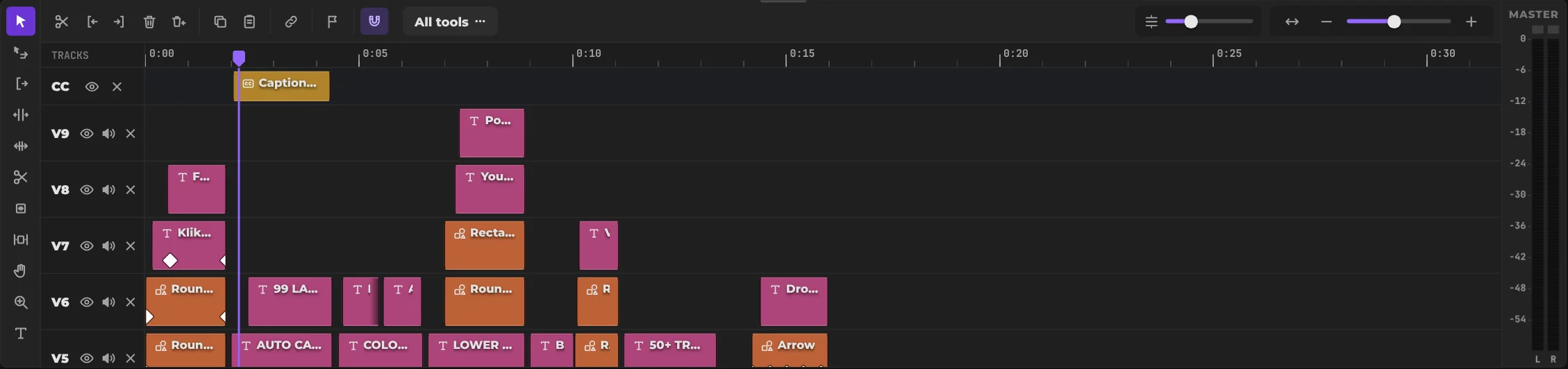
Where you arrange your edit. Drag clips to move them, drag their edges to trim, and use the zoom controls to see the whole project or a single frame. Undo and redo are always available.
Keyboard shortcuts
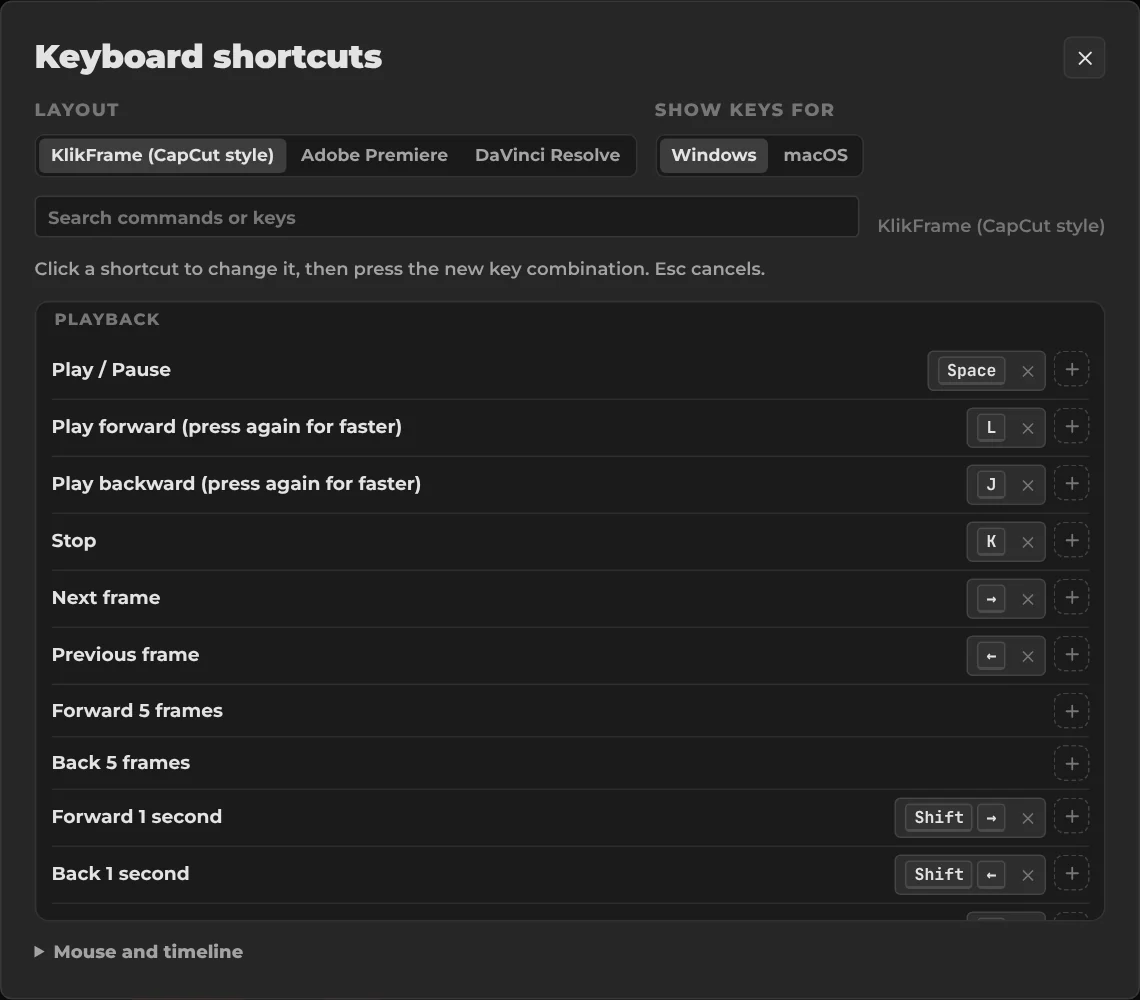
Open the keyboard icon to see every shortcut and search them. Choose the KlikFrame, Adobe Premiere or DaVinci Resolve layout, and show keys for Windows or macOS.
Supported Formats
Import
- Video and audio your browser can decode, such as MP4, MOV (H.264), WebM, MP3, WAV and AAC.
- Images: JPG, PNG, WebP.
- Captions: SRT, VTT.
- Fonts: TTF, OTF, WOFF, WOFF2.
- LUTs: .cube.
Export
- MP4 (H.264 + AAC).
- WebM (VP9 or AV1 + Opus).
- Resolutions up to 4K.
- Frame rates: 24, 25, 30, 50 and 60 fps.
Professional camera formats such as ProRes and BRAW cannot be decoded in the browser and are not supported.
System Requirements
- A recent version of Chrome or Edge on a computer gives the best results.
- Minimum 8 GB RAM (16 GB or more recommended for 4K and for the AI tools).
- An internet connection the first time you open KlikFrame and the first time you use each AI tool. After that, the work happens on your device.
KlikFrame also works on phones and tablets, but a computer gives the best experience.
AI Tools
KlikFrame's AI tools run on your computer, inside the browser. Your footage is never uploaded.
- Auto captions and transcripts — speech recognition in many languages.
- Edit by transcript — cut the video by editing its text.
- Find Shorts — find moments that work as short clips.
- Translate captions — into other languages.
- AI voiceover — speech generated from text.
- Clean up voice — remove background noise from dialogue.
- Remove silences — find and cut pauses.
- Remove background, auto reframe and blur faces — for people on camera.
The first time you use a tool, its model downloads once and your browser keeps it for later. Results are produced automatically and can contain mistakes, so check them before you publish.
Your Projects
- Projects and settings are stored in your browser's own storage on this device.
- Clearing browser data, using a private window, or switching to another browser or computer means the project will not be there.
- Some browsers, such as Safari, may remove stored data from sites you have not visited for a while.
- The Project panel shows how much space your projects use and warns you before storage is full. Nothing is deleted automatically.
- If a media file shows as offline, click it and locate the file again.
Supporting KlikFrame
KlikFrame is free to use. If you want to support its development, you can pay what you want. As a thank-you you receive the KlikFrame Quick Start guide as a PDF. Payments are processed by Lemon Squeezy.
Support payments are voluntary. If you paid by mistake, write to office@video-editor.com within 14 days and we will refund you.
Licences
KlikFrame is built with open-source components. We thank their authors.
- Mediabunny — reading and writing video files. MPL 2.0.
- Transformers.js — running AI models in the browser. Apache 2.0.
- ONNX Runtime Web — AI model engine. MIT.
- Whisper (OpenAI) — captions and transcripts. MIT.
- M2M100 (Meta) — translation. MIT.
- Kokoro-82M and kokoro-js — voiceover. Apache 2.0.
- RNNoise — voice clean-up. BSD 3-Clause.
- rnnoise-wasm — voice clean-up in the browser. Apache 2.0.
- Silero VAD — silence detection. MIT.
- vad-web — silence detection in the browser. ISC.
- MediaPipe and its models — background removal and face detection. Apache 2.0.
- GL Transitions — some of the transitions. MIT.
- Noto Emoji (Google) — emoji graphics. Apache 2.0.
- CookieConsent — cookie banner. MIT.
- Montserrat, JetBrains Mono and the title fonts — interface and titles. SIL Open Font License 1.1.
- Permanent Marker — titles. Apache 2.0.
KlikFrame library
The music, sound effects, titles and templates in the KlikFrame library are made for KlikFrame. You can use them in videos you make, including commercial work. You may not resell or redistribute them on their own.
KlikFrame itself
KlikFrame's own code, design and interface are proprietary. Copying, modifying, rebranding, redistributing or reselling them is not allowed without written permission. Using the app is free.
FAQ
Is KlikFrame really free?
Yes. No watermark, no account and no time limit.
Are my videos uploaded anywhere?
No. Editing, the AI tools and export all run on your device.
Why does it ask for my email?
Once, before the first export, so we can send news about KlikFrame and our other tools. You can ask us to remove it at any time.
Can I use my videos commercially?
Yes, including music and sound effects from the KlikFrame library.
My project is gone. Can you recover it?
No. Projects exist only in your browser. See Your Projects.
Does it work on a phone?
Yes, but it works best on a computer.
Support
Email: office@video-editor.com
Please include your browser and its version, your operating system, and a short description of the problem.