
Auto ducking
Auto ducking lowers the music automatically whenever someone speaks, then brings it back up, so voices stay clear without drawing volume keyframes.
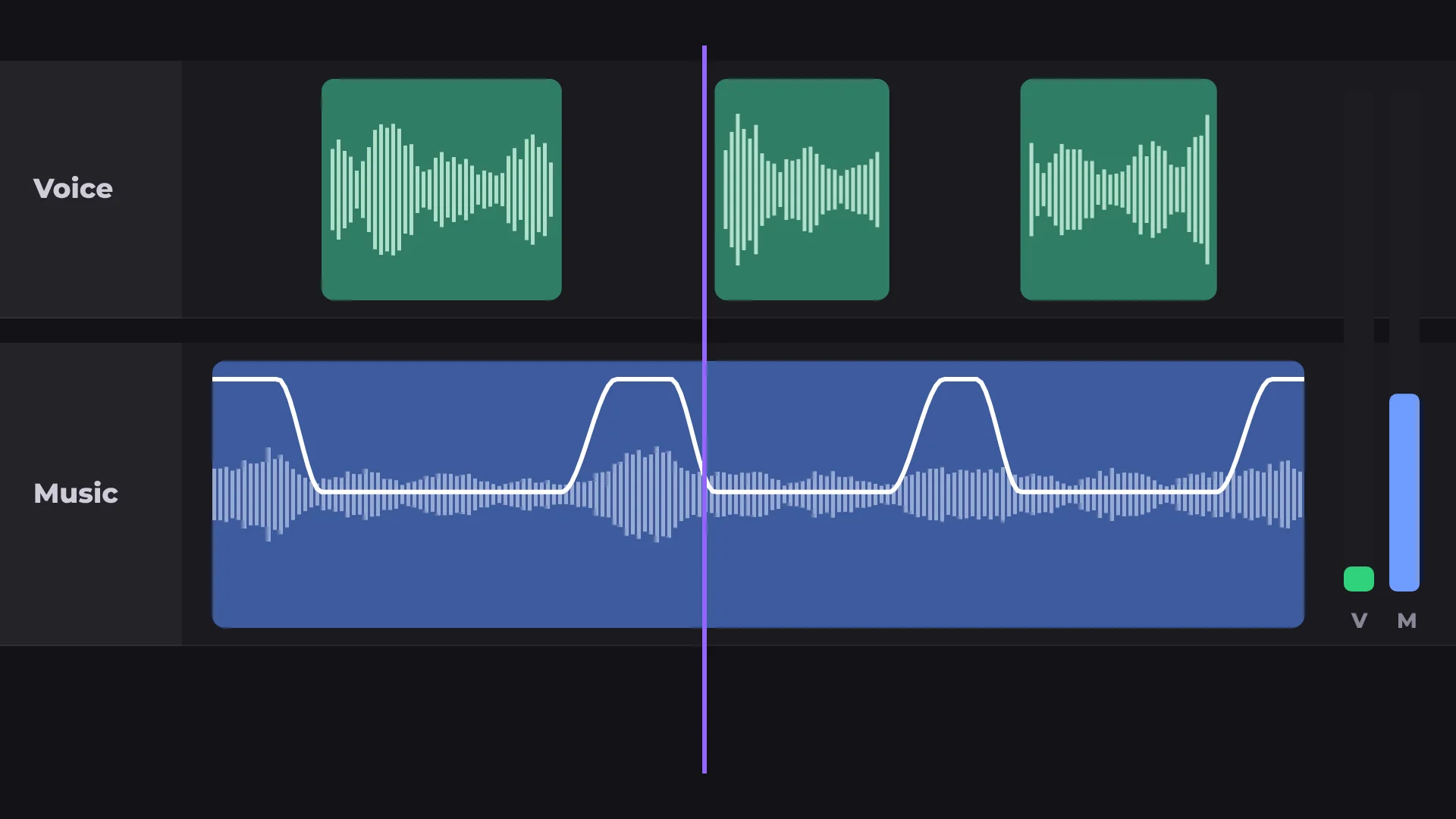
How to lower music when someone speaks
- 1
Use two tracks
Put the voice and the music on separate tracks.
- 2
Open Auto ducking
In Audio, pick the voice track and the music track and set how much to lower it.
- 3
Click Duck music
The music dips under every line of speech.
What you get
Pick the tracks
Choose which track is voice and which is music.
Set the dip
Lower the music by as much as you like, −14 dB by default.
Smooth fades
The music fades down and back up, no hard jumps.
Remove anytime
One click takes the ducking off again.
Questions about auto ducking
Is Auto ducking free?
Yes. Ducking and exporting are free, with no watermark.
How much does the music go down?
By −14 dB by default, and you can set any amount.
Does it work with AI voiceover?
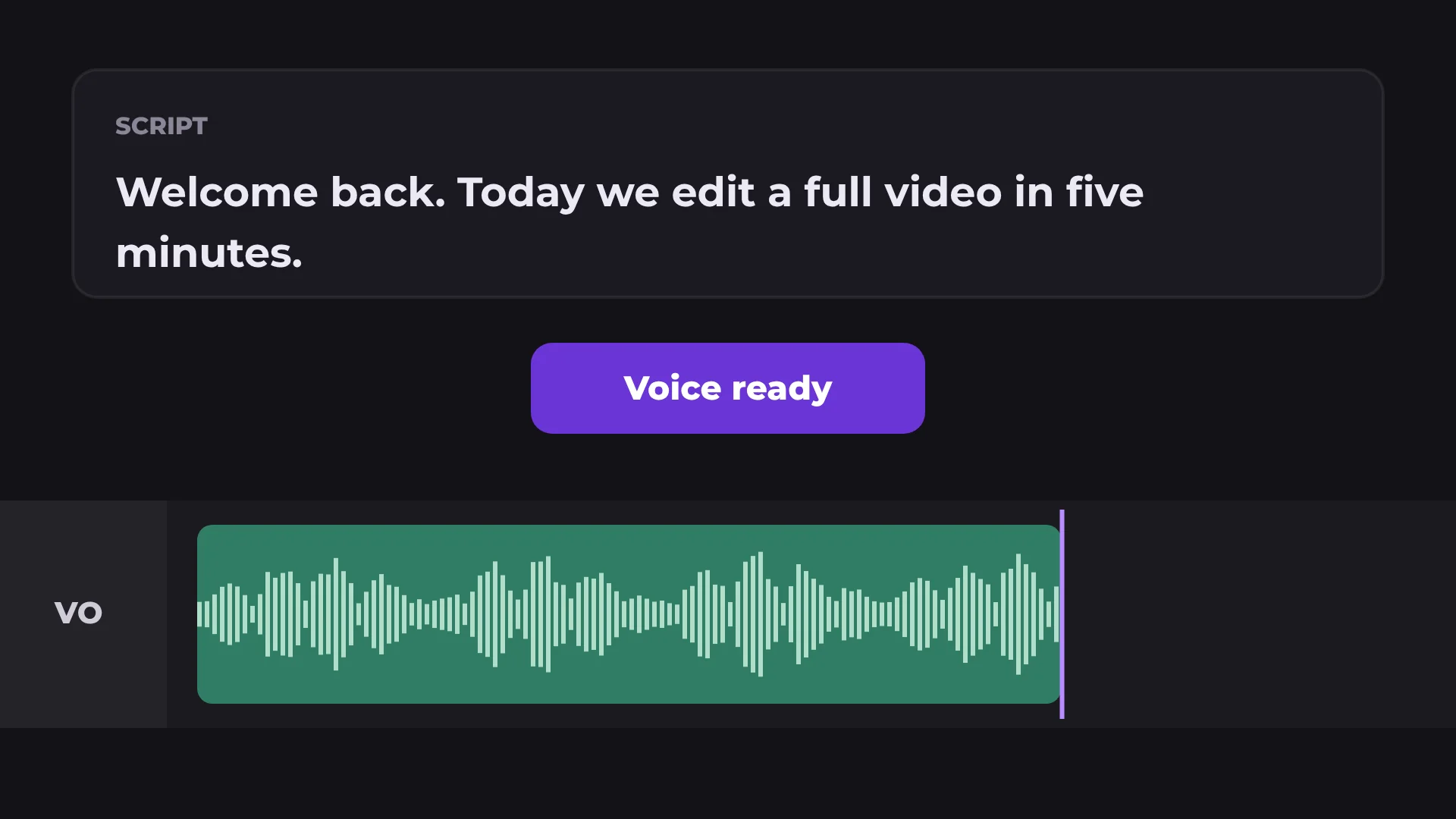
Yes. Pick the voiceover track as the voice track.
Can I undo it?
Yes. Click Remove to take the ducking off.
Do I need to draw keyframes?
No. The volume changes are made for you.
Your next video starts here
Open the editor and drop in your footage. Nothing to install.