
AI tool · runs on your device
Blur faces
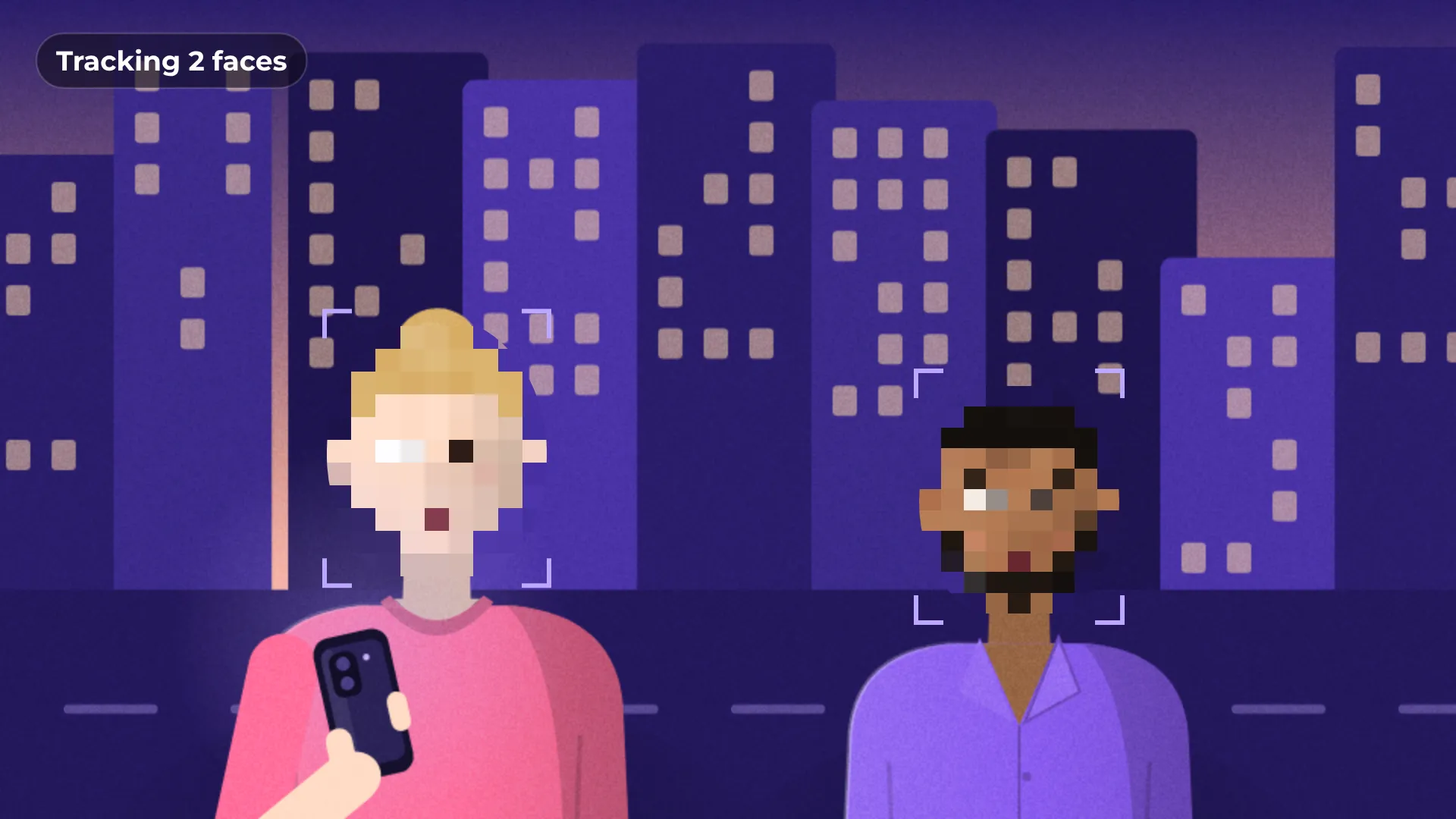
Blur faces finds the faces in your video and keeps them blurred as people move, so you can protect privacy without masking frame by frame.
Auto
face tracking
Moving
people followed
0 MB
uploaded
Free
no watermark
How to blur faces in a video
- 1
Select a clip
Click the clip on the timeline.
- 2
Apply Blur faces
Faces are found and stay blurred as they move.
- 3
Blur anything else
For a license plate or a screen, add Elements → Blur area.
What you get
Follows movement
The blur moves with each face through the shot.
Several faces
Every face in the frame is tracked.
Blur any area
Hide plates, screens or logos with Blur area.
Private by default
Your footage never leaves your computer.
Made for
Street footage
Events
Vlogs
Documentaries
Questions about blur faces
Is Blur faces free?
Yes. Blurring and exporting are free, with no watermark.
Does it work on moving people?
Yes. The blur follows each face as it moves.
Can I blur something that is not a face?
Yes. Use Elements → Blur area for plates, screens or logos.
Does it blur more than one face?
Yes. Every face it finds in the shot is blurred.
Is my video uploaded anywhere?
No. Faces are found on your computer.
Your next video starts here
Open the editor and drop in your footage. Nothing to install.