
Convert MOV to MP4 online
Turn iPhone and camera MOV files into MP4 videos that play on Windows, Android and every website. The conversion runs in your browser, so the file is never uploaded.
Opens in KlikFrame, our free video editor that runs in your browser.
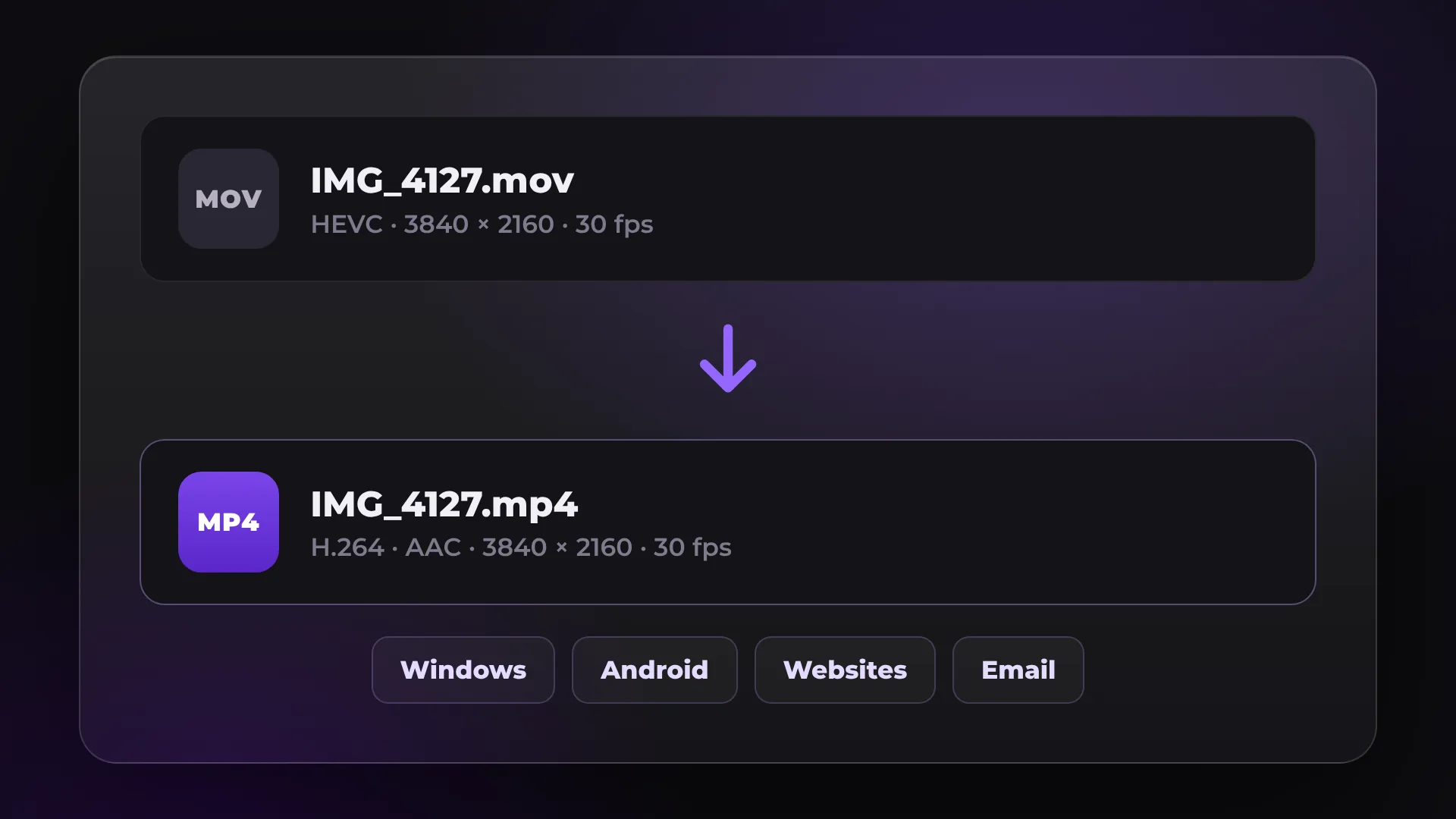
How to convert MOV to MP4
- 1
Open your MOV file
Click Convert MOV to MP4 and drop in the .mov file from your phone or camera.
- 2
Match the original
In Export, pick the resolution and frame rate of the original, for example 4K at 30 fps.
- 3
Export as MP4
Click Start export. KlikFrame saves an MP4 file with H.264 video and AAC audio.
MOV vs MP4
Both formats hold video and audio. The difference is where they play without problems.
MOV | MP4 | |
|---|---|---|
Made by | Apple: iPhone, Mac and many cameras | Open standard (MPEG-4) |
Plays on Windows and Android | Not always | Yes |
Websites and email | Sometimes rejected | Accepted almost everywhere |
Common video codec | HEVC, H.264 or ProRes | H.264 |
Converting puts the video in a new container and encodes it again at the quality you choose. Read how codecs and bitrate work.
Good to know
iPhone videos
iPhones record MOV in HEVC by default. Safari opens these files, and so do Chrome and Edge on most computers that play HEVC.
ProRes files
Most browsers cannot read ProRes. Export ProRes files to H.264 in your editing software first.
Keep the frame rate
Choose the same frame rate as the original so motion stays smooth.
Edit before you convert
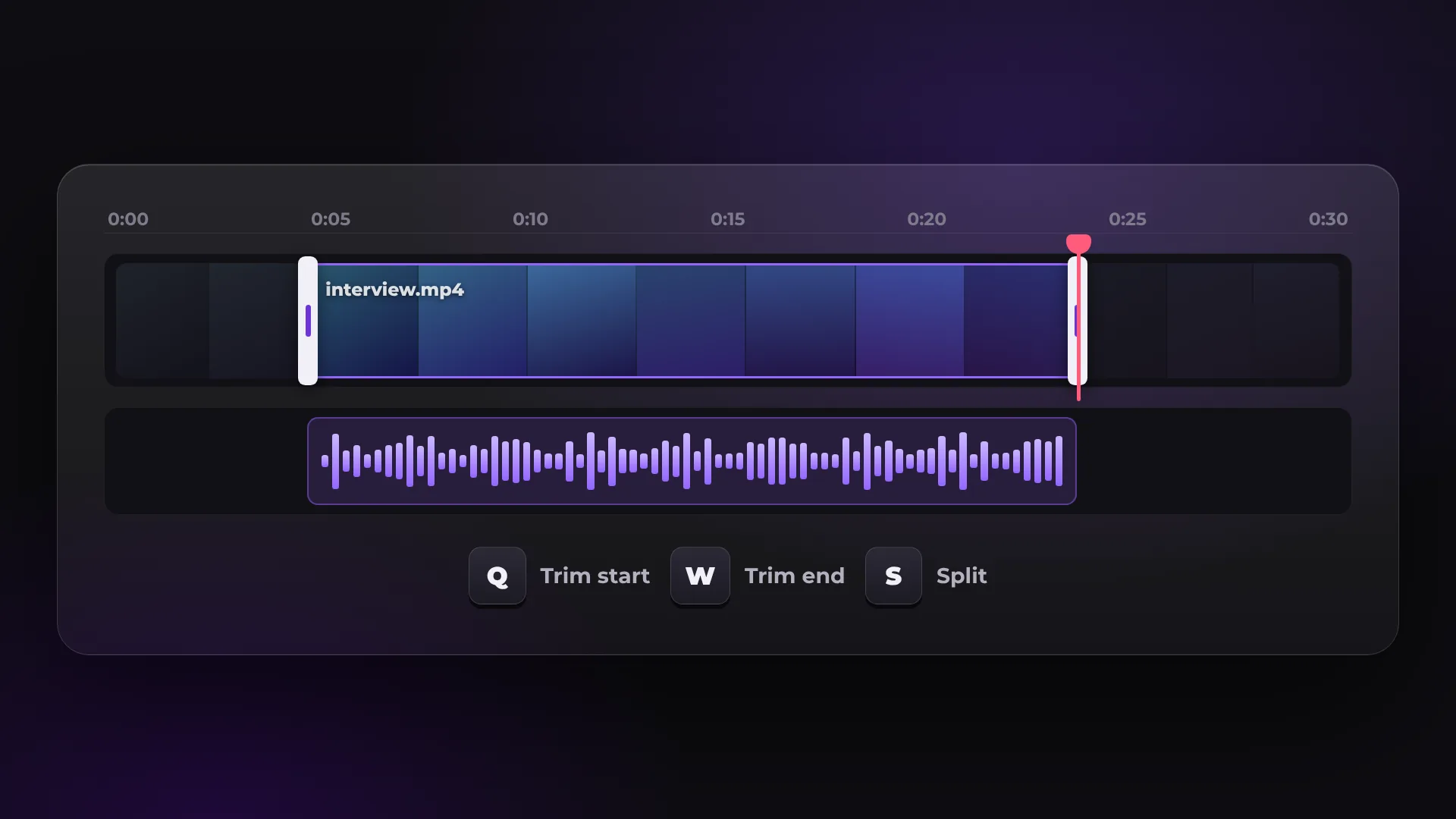
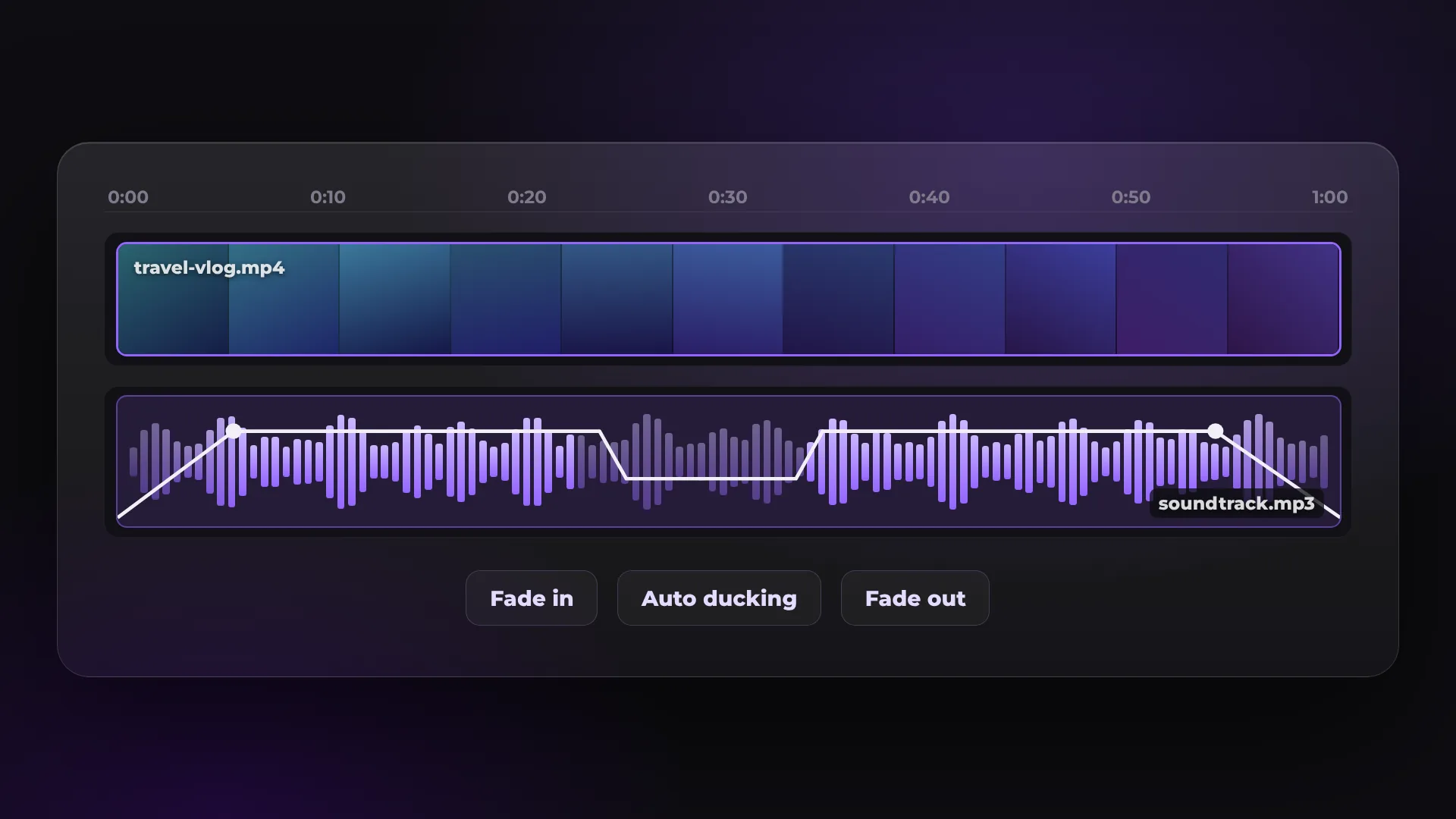
Cut, add captions or fix the sound before export. It is the same editor.
Questions about MOV to MP4
Is converting MOV to MP4 free?
Yes. There is no watermark and no account. You add an email address once, before your first export.
Is my file uploaded anywhere?
No. KlikFrame reads and exports the file in your browser, on your own computer.
Will I lose quality?
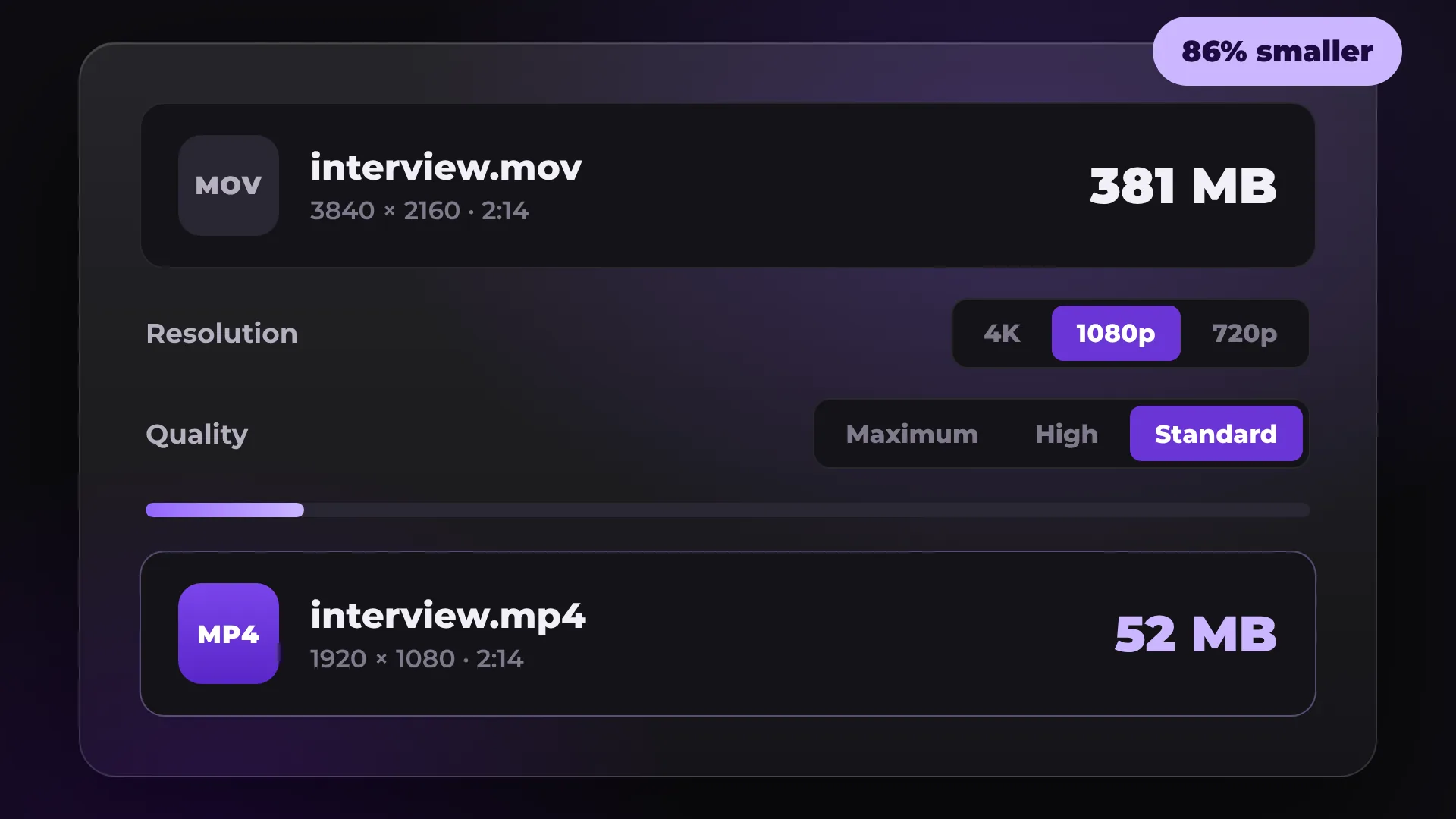
Every conversion encodes the video again. At the original resolution and High or Maximum quality, the difference is hard to see.
Why does my MOV file not open?
It is probably ProRes, or HEVC on a computer that cannot play HEVC. Try Safari, or export the file to H.264 first.
Your next video starts here
Open the editor and drop in your footage. Nothing to install.