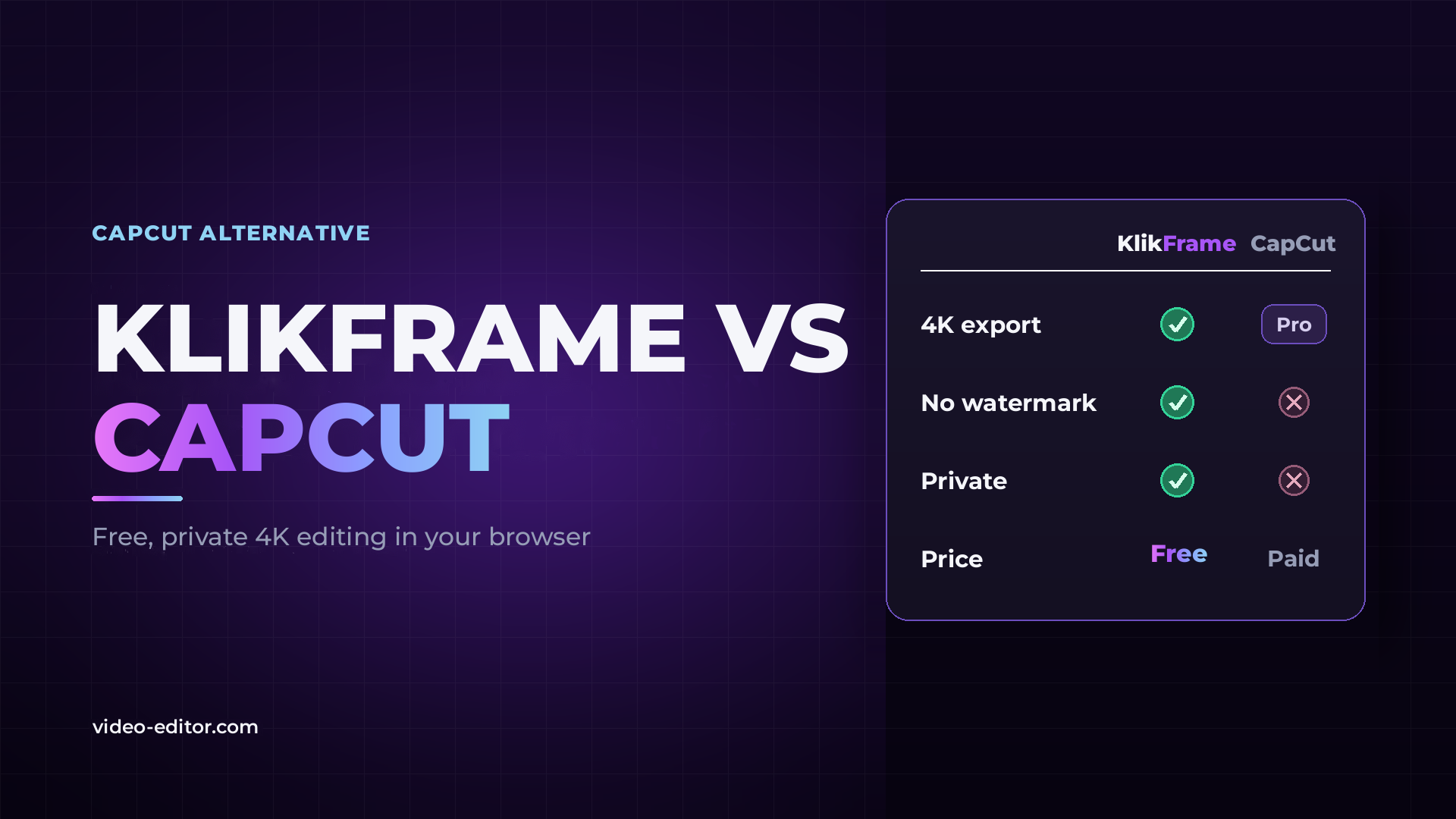
If you are looking for a free CapCut alternative, KlikFrame is a video editor that opens in your browser with no install, no account and no watermark. Exports go up to 4K at 60 fps, and every AI tool, from auto captions to background removal, runs on your own computer. Your footage is never uploaded.
This guide compares KlikFrame and CapCut on the things that decide which one fits your work: price, watermarks, export quality, privacy and the tools you use every day. It also covers another well-known alternative and is clear about where each one is the better choice.
The short version
CapCut is a capable editor with a large template library, but its best features sit behind paid plans, and free exports carry a watermark when you use Pro-marked assets. KlikFrame gives you 4K exports, AI captions, background removal, Find Shorts and color grading for free, with no watermark, and it processes everything on your device instead of a server. If you want a fast, private, free editor for YouTube, Shorts, Reels and client content, KlikFrame is the CapCut alternative to try first.
Most people who search for a CapCut alternative want the same thing CapCut offers, quick editing with smart tools, without the trade-offs. Four questions separate the options:
| KlikFrame | CapCut | |
|---|---|---|
| Price | Free, with optional pay what you want | Free plan, plus paid Standard and Pro plans |
| Watermark | None | None on plain free exports; added when Pro-marked assets are used |
| Export quality (free) | Up to 4K, 60 fps | Up to 1080p; 4K requires Pro |
| Where AI tools run | On your computer, in the browser | CapCut's apps and services |
| Footage uploaded | Never | Cloud features store content on CapCut's servers |
| Platforms | Browser on computer, tablet or phone | iOS, Android, Windows, Mac and web |
| Templates and stock | Free music and sound effects, 14 caption styles, 50+ transitions | Large template and asset library |
CapCut's strength is its template and asset library, and if your workflow is built around trending templates, that is a real advantage. KlikFrame's strength is that the core of what most creators need is free and private, at full quality.
KlikFrame runs entirely inside your browser. When you import a clip, it stays on your device, and so does every frame the AI tools process. The models behind tools like auto captions download once the first time you use them, and the browser keeps them for next time.
This matters most when the footage is not yours to share: client projects, unreleased products, interviews or private family video. CapCut's terms grant the company a broad license to content submitted through its services. CapCut has publicly stated that this language has not changed in years and covers what it needs to run the service. With KlikFrame, the question does not come up, because nothing is uploaded.
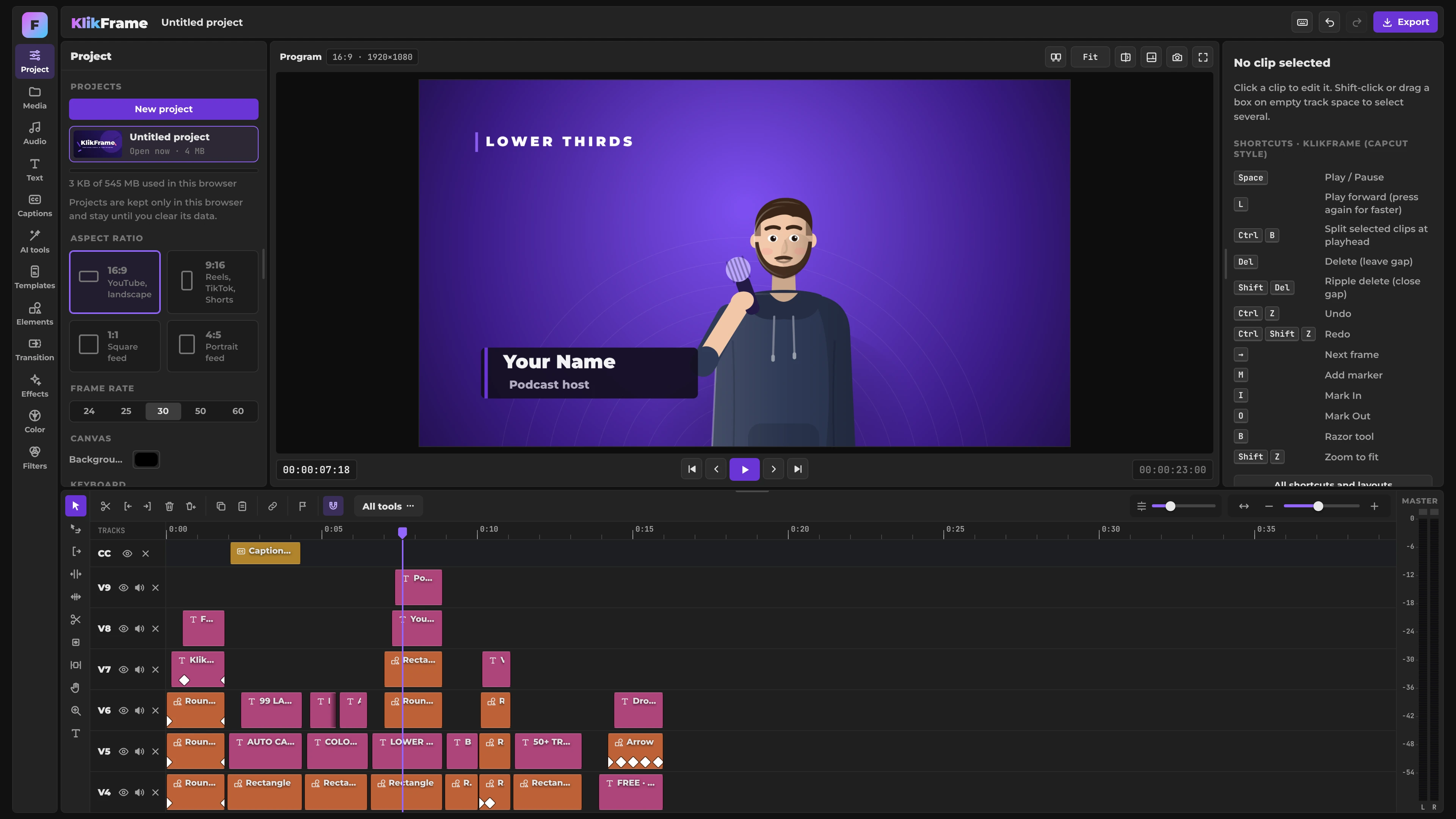
Open the page and start editing. There is no installer, no sign-up screen and no app store. KlikFrame works on a computer, a tablet or a phone, and projects save automatically in your browser, so you can close the tab and pick up where you left off. Choose 16:9 for YouTube, 9:16 for Reels, TikTok and Shorts, or 1:1 and 4:5 for feeds when you start a project.
The studio behind KlikFrame edits video professionally, and it shows in the details: three color wheels, curves and four live scopes (Waveform, Parade, Vectorscope and Histogram), .cube LUT import and export, SRT and VTT subtitle files, and loudness normalization to −14 LUFS for YouTube. You do not need any of that to make a quick Short, but it is there when the work calls for it. For a faster look, one-click filters such as Vivid, Matte, Cinematic and Teal & orange apply a grade in a single step. See how color grading works in KlikFrame.
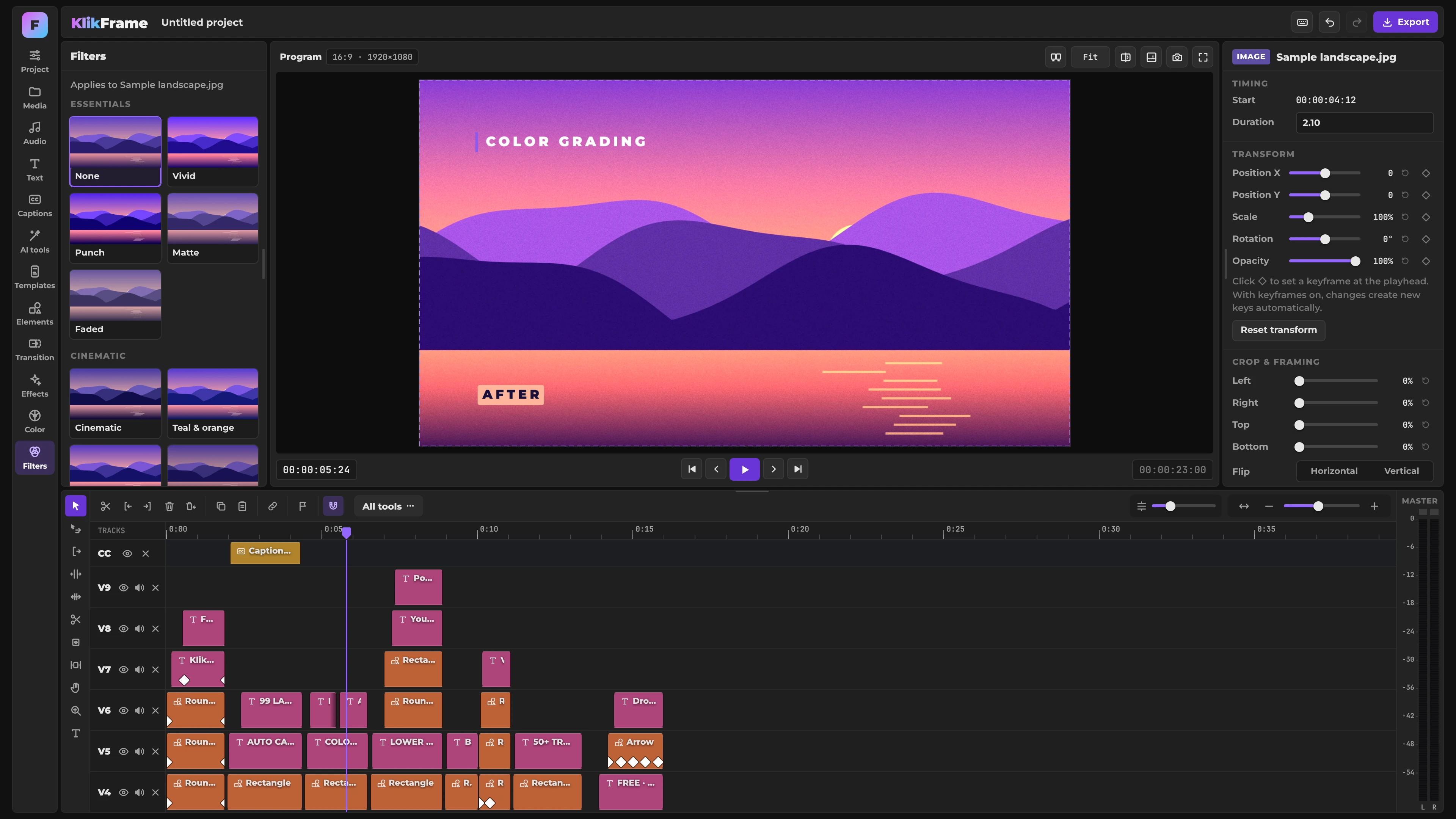
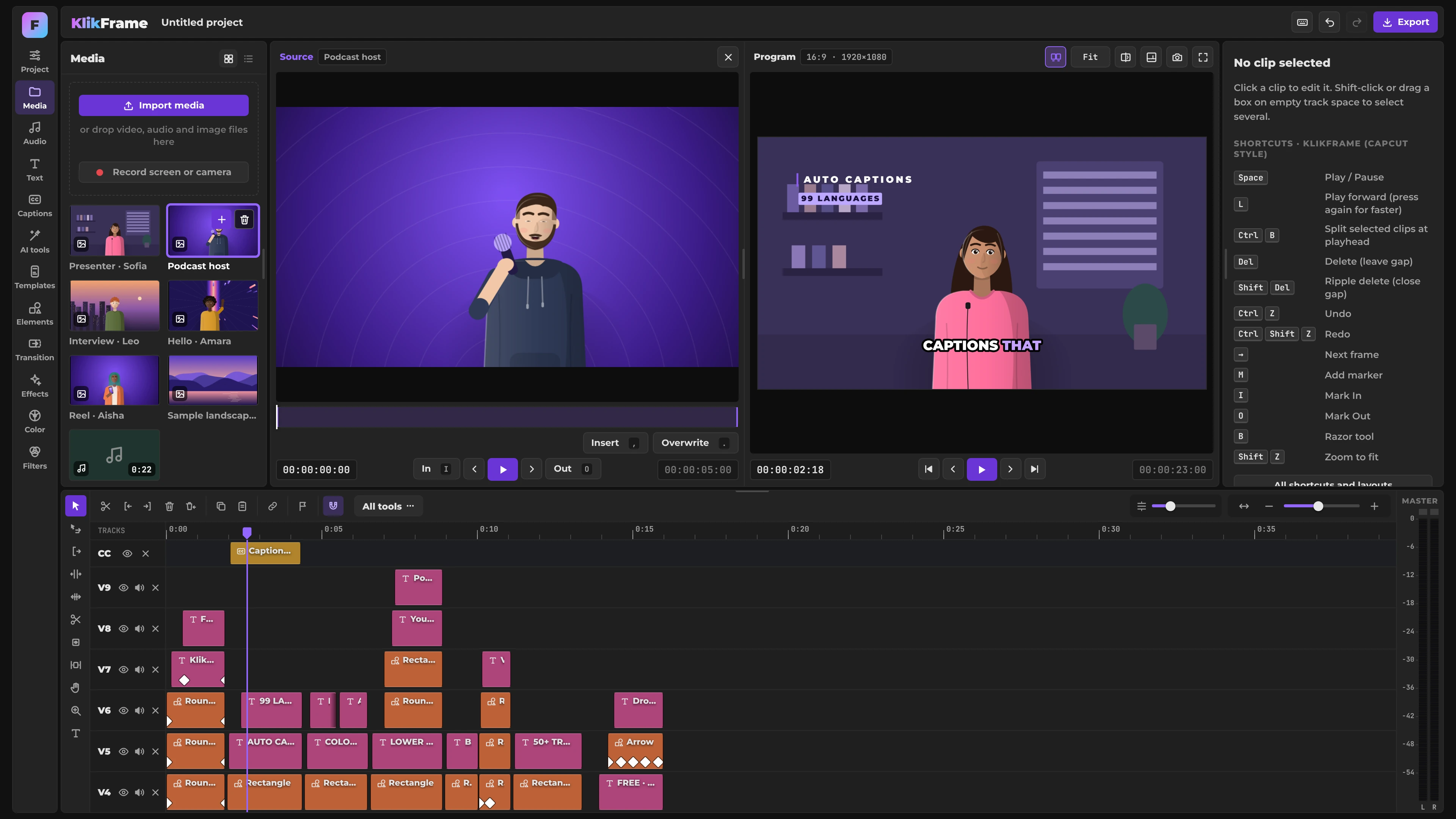
If you are coming from CapCut, you do not have to relearn your muscle memory. KlikFrame includes a CapCut-style shortcut layout by default, plus Adobe Premiere and DaVinci Resolve layouts, with keys shown for Windows or macOS. Any shortcut can be changed with a click.
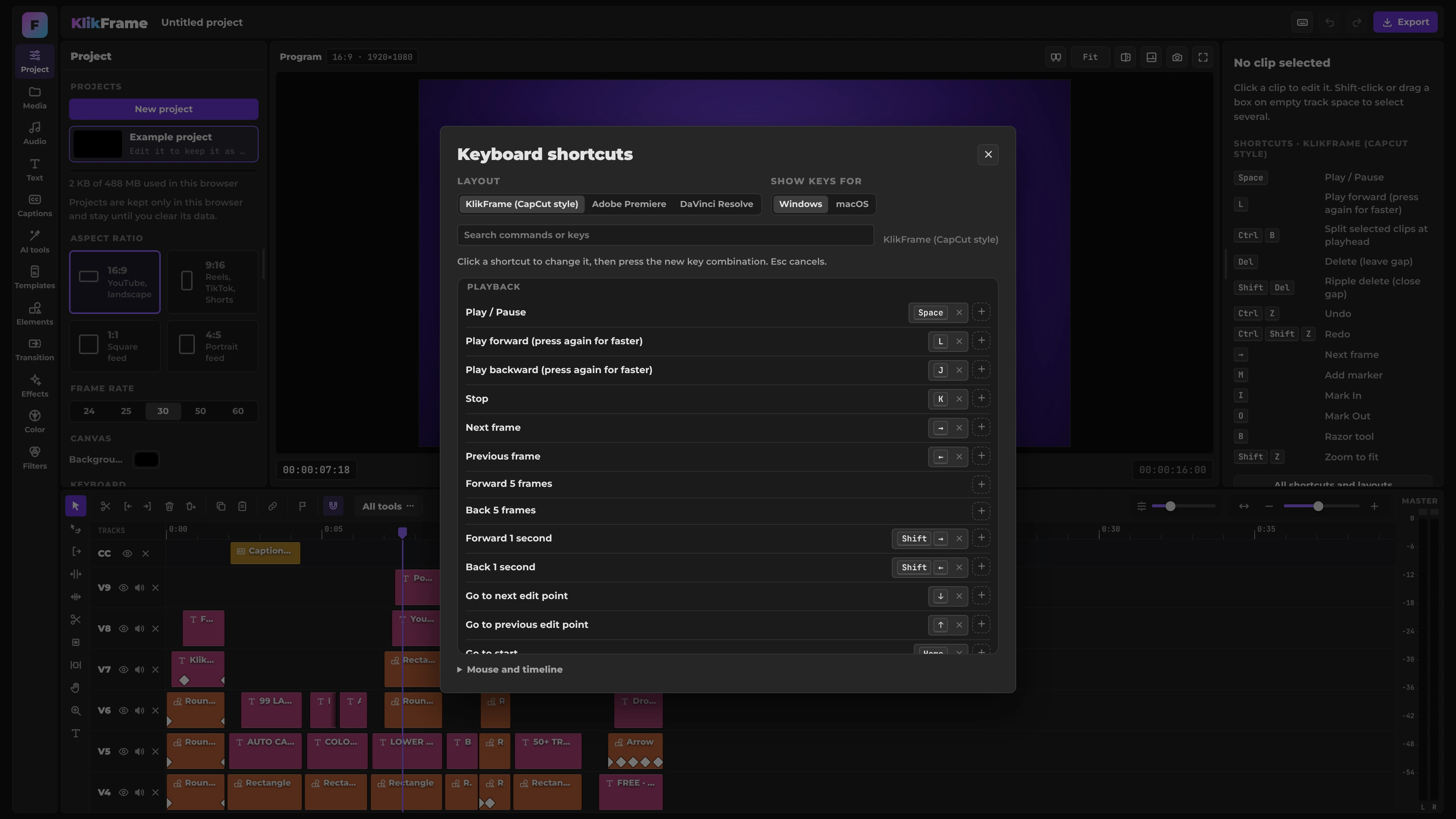
These are the features people use CapCut for most, and how KlikFrame handles each one, all free and all on your device.
Auto captions. Word-by-word subtitles in 99 languages, timed to the voice, with words that light up as they are spoken. Edit them like text, choose from 14 caption styles, then export SRT or VTT or burn them into the video. See how auto captions work in KlikFrame.
Remove background. Cut a person out of the shot without a green screen. The cutout follows them frame by frame, and you can place any image, video, color or gradient behind them. Learn more about removing a video background without a green screen.
Find Shorts. Drop in a long video, and KlikFrame ranks its strongest moments and turns the one you choose into a vertical 9:16 Short that follows faces, exported in 1080p or 4K. Here is how Find Shorts picks the best moments.
Auto reframe. Turn a 16:9 video into 9:16, 1:1 or 4:5 while the speaker stays in frame. Each format keeps its own framing in the same project. Read more about reframing video for every platform.
Remove silences. Cut the pauses between sentences and close the gaps automatically, with the pause length set to 0.3, 0.5 or 0.8 seconds, while video and audio stay in sync. See how silence removal works.
Transitions. More than 50 modern transitions, including whip pans, zooms, light leaks, film burns and RGB glitch, with one click to apply a transition to every cut. Browse the full set of video transitions.
Beyond these, KlikFrame includes edit by transcript, caption translation into 36 languages, voice cleanup, AI voiceover in English, stabilization, face blur, beat sync, auto ducking, speed ramps, titles and a screen recorder. You can see all 21 KlikFrame tools on one page.
Exports go up to 4K and 60 fps, including the Maximum quality setting, with no watermark. You add your email once, at your first export, so we can tell you about new tools and features. There is no paywall in front of the export button.
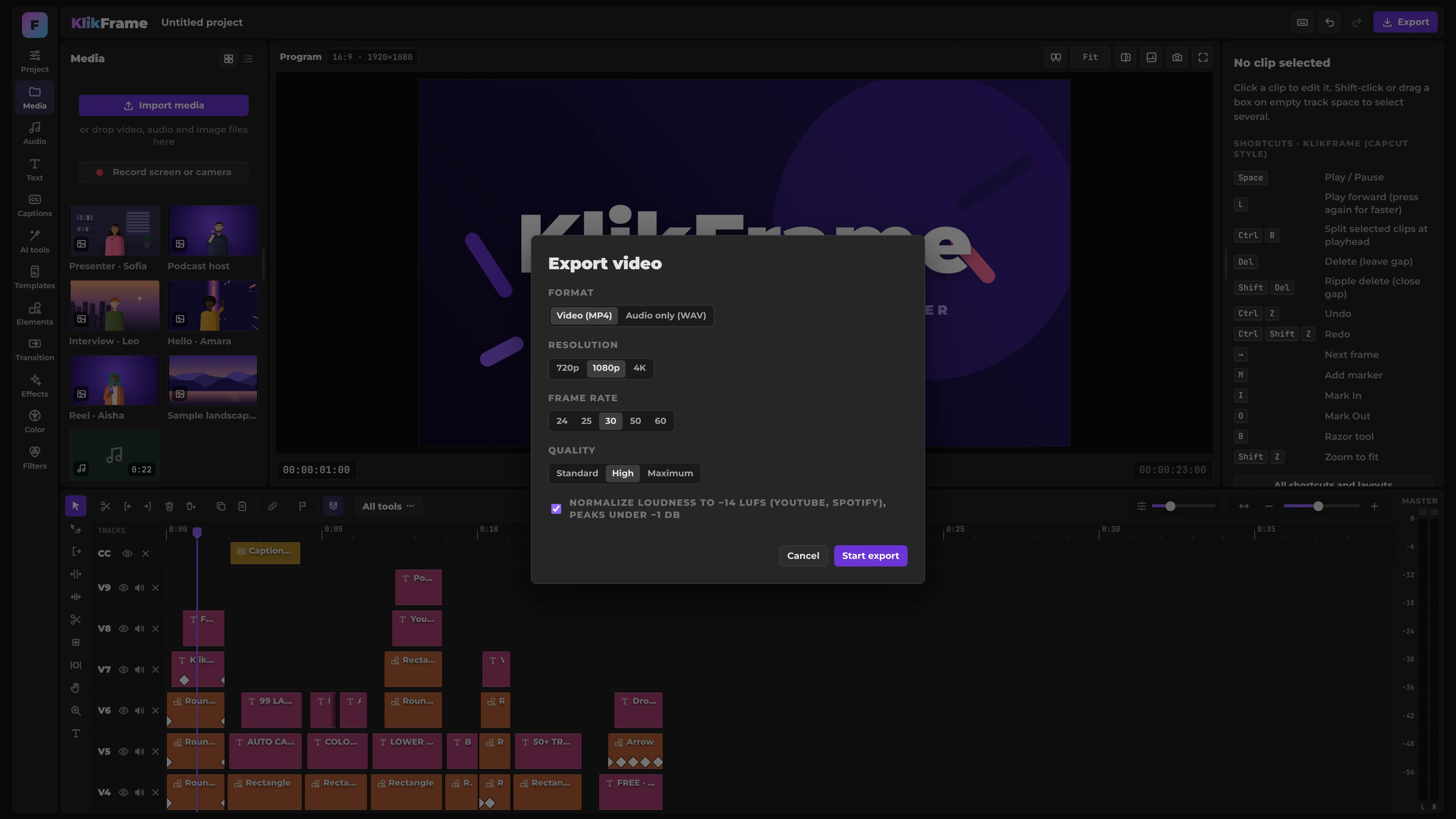
On CapCut, a standard free export is watermark-free at up to 1080p, but adding Pro-marked templates, effects or AI clips triggers the watermark, and 4K is part of the paid Pro plan. At the time of writing, Pro was listed at $19.99 per month or $179.99 per year in the US, and CapCut notes that prices vary by region and device.
KlikFrame is not the only option, and the right choice depends on how you work.
Clipchamp is Microsoft's editor, available in the browser and as a Windows app. Its free plan includes watermark-free exports up to 1080p and requires a Microsoft account. Premium features and stock add a watermark unless you upgrade, and 4K export is part of the paid plan. It suits people already working in the Microsoft ecosystem.
| Editor | Where it runs | Account | Free export | Best for |
|---|---|---|---|---|
| KlikFrame | Browser, processed on your device | Not needed; email once at first export | Up to 4K, 60 fps, no watermark | Fast, private editing for YouTube, Shorts, Reels and client content |
| CapCut | Mobile, desktop and web apps | Needed for most features | Up to 1080p | Template-driven social content |
| Clipchamp | Browser and Windows app | Microsoft account | Up to 1080p, no watermark on free features | Quick edits in the Microsoft ecosystem |
A fair comparison includes the trade-offs:
Choose KlikFrame if you make YouTube videos, Shorts, Reels or social content for clients and want captions, reframing and clean 4K exports for free, without uploading footage or installing anything.
Choose CapCut if your workflow depends on its trending templates and asset library and you are comfortable with its subscription for premium features.
When the project outgrows quick editing, such as long-form, color-critical or broadcast work, a professional post-production suite like DaVinci Resolve or Adobe Premiere is the next step. If you are weighing those two, read DaVinci Resolve vs Adobe Premiere.
Before you decide, see everything KlikFrame can do and how it fits your workflow.
Yes. KlikFrame is a free browser-based video editor with no watermark on any export, up to 4K at 60 fps. You add your email once at your first export, and there is an optional pay-what-you-want option to support development.
Yes. Editing and exporting are free, with no watermark and no limits. You add your email once, and you can pay what you want to support development if you choose to.
No. Your files stay on your computer. The editor and all its AI tools run inside your browser, so nothing is sent to a server.
No. KlikFrame opens in your browser. The AI tools download their models the first time you use them, and the browser keeps them for next time.
Yes. KlikFrame uses a CapCut-style shortcut layout by default and also offers Adobe Premiere and DaVinci Resolve layouts, for Windows and macOS. Any shortcut can be changed.
Everything runs on your device, so speed depends on that device. Newer computers handle 4K and AI tools smoothly; older ones work with longer waits.
Yes, in the browser. Speed depends on the device, and a computer with a bigger screen is more comfortable for longer projects.
Projects save automatically in the browser on the computer you used. You can close the tab and continue later, but clearing browser data removes them.
For most short-form work, yes. Find Shorts turns long videos into vertical clips, auto reframe keeps the speaker in frame, and auto captions add word-by-word subtitles in 99 languages, all free and exported without a watermark.
Want more practical guides for video creators? Browse the full blog.
 u
u