
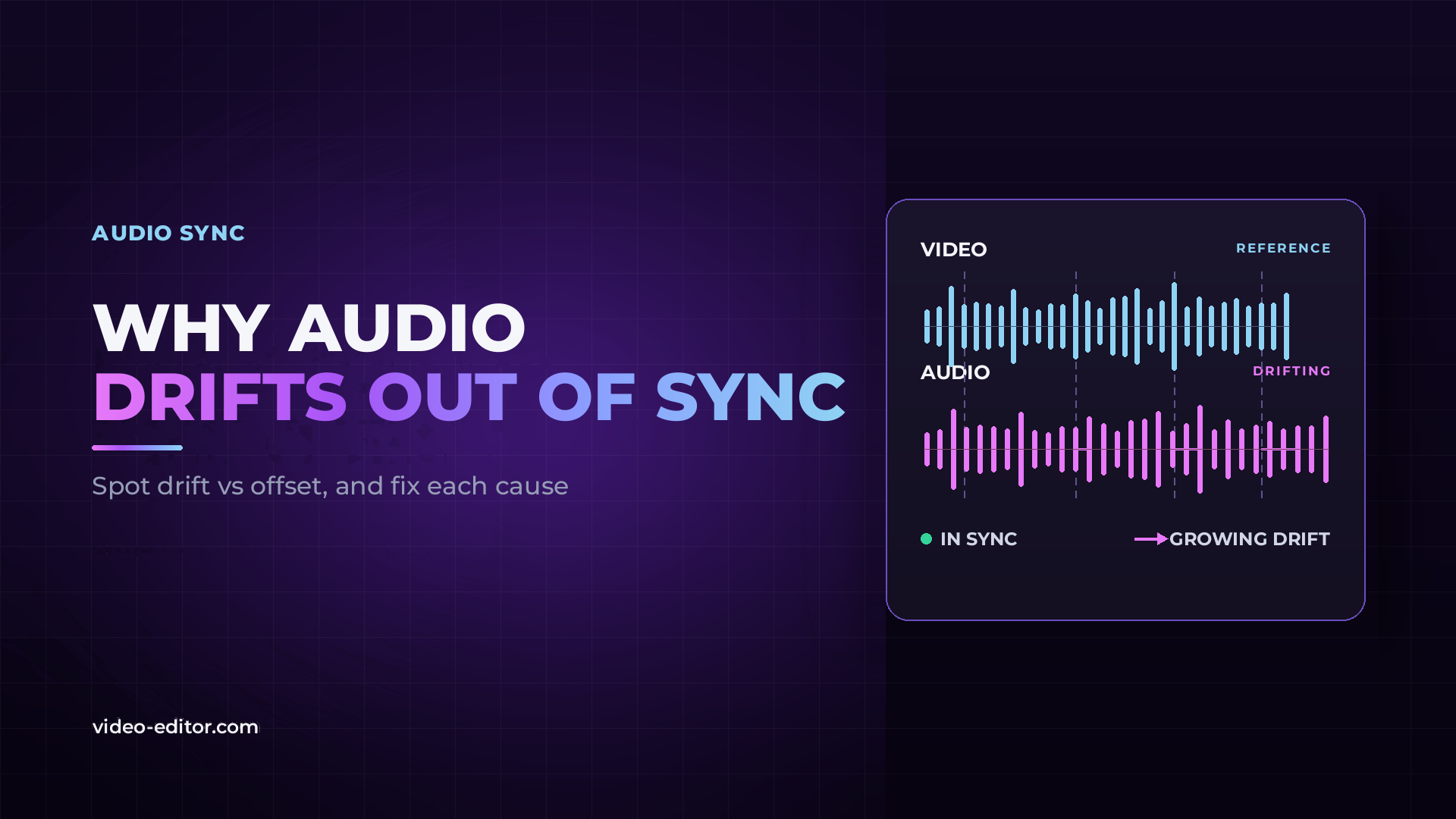
Audio that drifts is not the same problem as audio that is offset. If your sound lines up at the start of a clip and slides further out as the clip plays, the two files are running at slightly different speeds, and no amount of nudging the audio track will fix it. If the gap stays exactly the same from beginning to end, it is a placement problem, and nudging is precisely the fix.
Telling those two apart takes about two minutes, and it decides everything you do next. This guide covers how to run that test, the five things that actually cause drift, and how to fix each one.
An offset is constant. The audio is 12 frames late at the start of the clip, 12 frames late in the middle, and 12 frames late at the end. The two files play at the same speed; one simply starts in the wrong place.
Drift grows. The audio is in sync at the start, half a frame out after five minutes, three frames out after twenty, and unwatchable by the end of an hour. The two files are playing at slightly different speeds, so the error accumulates.
This distinction matters because the fixes have nothing in common.
| Offset | Drift | |
|---|---|---|
| Gap over time | Constant | Grows steadily |
| Root cause | Wrong start position | Different playback rates |
| The fix | Move the audio | Correct the rate, or re-conform the file |
| Does nudging help? | Yes, permanently | Only at one moment, then it slides again |
If you have been dragging an audio track back and forth, getting it right in one spot and finding it wrong somewhere else, you have drift.
You need two measurements from the same clip.
Step 1. Find a sharp, unmistakable sound near the beginning, such as a clap, a door or a hard consonant. Zoom in until you can see individual frames. Note how many frames the audio is off by, and whether it is early or late. Write it down.
Step 2. Find another sharp sound as close to the end of the clip as possible. Measure it the same way.
Step 3. Compare the two numbers.
If they match, you have an offset. Move the audio by that amount and you are done.
If the second number is larger, you have drift. Now work out the rate of the error, because its size tells you which cause you are dealing with: subtract the frames off at the start from the frames off at the end, then divide by the number of frames between the two measurements.
A clip that starts in sync and is 4 frames out after ten minutes at 25 fps gives you 4 divided by 15,000, which is roughly 0.027%. Keep that percentage, because the next section uses it.
Phones, screen recorders, game capture software and most webcam tools record variable frame rate video. The file does not hold a steady 30 frames every second. It holds however many frames the encoder decided to write, plus a timing table saying when each one belongs.
Editing software assumes constant frame rate. It reads the average, discards the timing table and lays the frames out evenly. Every place where the real capture ran faster or slower than that average becomes a small timing error, and those errors accumulate in one direction.
How you recognise it: the source is a phone, a screen recording, OBS or a downloaded file. The drift is inconsistent, and often worse in busy scenes than in static ones, because that is where the encoder changed rate most.
How big: unpredictable. Anywhere from a few frames to several seconds across a long recording.
Video production runs at 48 kHz. Consumer audio hardware and a lot of free software default to 44.1 kHz. When a file recorded at one rate is interpreted as the other, playback speed is wrong by 8.8%, so the audio finishes roughly eight minutes early over an hour and a half.
That extreme case is obvious, because the pitch is audibly wrong. The dangerous version is subtler: a file whose header says 48,000 Hz while the hardware actually sampled at 48,048 Hz, or a recorder left on a pull-down rate from an earlier job.
How you recognise it: check the audio file properties against the sequence audio settings. If they disagree, you have found it. A severe mismatch also shifts pitch, so voices sound slightly high or low.
How big: 44.1 kHz read as 48 kHz is 8.8%, which is around three minutes of drift in a 35-minute recording. A 0.1% pull-down error is 3.6 seconds per hour.
The NTSC frame rates are not whole numbers. What people call 30 fps is really 29.97, and 24 fps is really 23.976. The difference is exactly 0.1%.
When a file shot at 23.976 is interpreted as 24, or dropped into a 24 fps sequence without conforming, the picture plays 0.1% fast while the audio plays at its true speed. That is 3.6 seconds of drift per hour, or about 86 frames. More than enough to ruin an interview.
The same thing happens in reverse when PAL and NTSC material share a timeline, and whenever a sequence is created at a frame rate that does not match the footage inside it. Our frame rate guide covers which rate to shoot at in the first place.
How you recognise it: your calculated error rate lands very close to 0.1%. That number is a fingerprint, because almost nothing else produces exactly 0.1%.
How big: 3.6 seconds per hour, every time.
Every device that records has its own crystal oscillator setting its timing. Two devices started at the same instant will not stay in step, because no two crystals run at precisely the same frequency. Consumer and prosumer gear is typically specified in the tens of parts per million.
Fifty parts per million sounds like nothing. Over an hour it is 0.18 seconds, roughly four frames. Over a three-hour concert or conference it is more than half a second, and by then lip sync is visibly gone.
How you recognise it: it appears only on long, unbroken takes, and only between separate devices. Camera audio stays locked to its own picture because they share one clock. The external recorder is the one sliding away.
How big: a fraction of a second per hour. Invisible on a five-minute take, obvious on a two-hour one.
This one is not a rate problem at all, but it produces the same symptom and belongs on the list because it is so common.
When a project moves between applications as XML, the file describes where each clip starts, how long it runs and what frame rate it claims. Several things routinely go wrong in that exchange. Clips trimmed on the timeline pass along only the trimmed portion, so any tool that needs to analyse the whole file is working from a fragment. Audio files sometimes carry a frame rate in the XML that has nothing to do with the video around them, and a 25 fps timebase sitting in a 29.97 sequence is a real and frequent case. A receiving application may also conform media on import, quietly changing what you exported.
How you recognise it: everything was fine in the original project and broke after an import. Some clips are correct while others are not. Nudging fixes one clip and does nothing for the next.
How big: varies from clip to clip, which is exactly what makes it confusing.
| Symptom | Most likely cause | First thing to check |
|---|---|---|
| Error rate is almost exactly 0.1% | Frame rate conform | Sequence rate against clip rate |
| Pitch sounds slightly wrong | Sample rate mismatch | Audio file properties |
| Source is a phone or screen recording | Variable frame rate | Whether the file is VFR |
| Only long takes, external recorder only | Independent clocks | Length of the take |
| Started after an XML import | Round-trip conform | Original project against the import |
| Some clips fine, others not | Trimmed clips or mixed sources | Clip by clip inspection |
Variable frame rate. Re-encode to constant frame rate before you edit anything. Free tools such as HandBrake and Shutter Encoder do this, and so does any transcode to an editing codec like ProRes or DNxHR. It is the same step that produces good proxy media, so a proxy workflow already covers you. Always convert from the original file, never from something already imported and stretched.
Sample rate mismatch. Convert the audio to match your sequence, which for video work means 48 kHz. Do it in an audio application or a transcoder rather than letting the editing software interpret the file, because interpretation is what caused the problem. Set every recorder on the shoot to 48 kHz and check it before rolling.
Frame rate conform. Interpret the footage at its true rate instead of the rounded one. Both major applications allow this: in Premiere through Modify and then Interpret Footage, in DaVinci Resolve through Clip Attributes. Set the sequence to the rate of the majority of your material and interpret the exceptions.
Independent clocks. For takes under roughly twenty minutes, sync once and move on, because the error stays below one frame and nobody will see it. For anything longer, sync in sections: split the take into chunks of ten to fifteen minutes and align each one, which keeps the accumulated error under a frame everywhere. Where this matters routinely, timecode is the real answer, and we compare the two approaches in timecode vs audio waveform sync.
XML round trips. Export clips at full length with no trimming, keep one source per track, and check the imported result against the original before building on it. If a clip carries a wrong frame rate in the XML, fix it in the source project and export again rather than patching it downstream.
Recutting from scratch is rarely an option. Two approaches work.
Stretch the audio to match. If you know the error rate, you know the correction. Drift of 3.6 seconds across an hour means the audio needs to run 0.1% slower. Both Premiere and Resolve can change clip speed by a precise percentage, and modern time stretching holds pitch well enough that nobody will hear a tenth of a percent. Apply it to the whole clip, then check sync at the start, the middle and the end.
Cut and re-align. Slice the audio at natural pauses every few minutes and nudge each piece into place. Cruder, but it survives any cause, works when the drift is not perfectly linear, and leaves the audio quality untouched. For dialogue it is often the safer choice.
Fix the source files for anything you still have to edit. These are repairs, not solutions.
Set every recorder and camera to 48 kHz before the first take. Match the frame rate across all cameras, and if one of them can only shoot 29.97 while the others shoot 25, decide how to handle that in advance rather than in the edit.
Avoid phone and screen-recorded footage as primary material where you can, and transcode it to constant frame rate the moment it lands on your drive where you cannot.
Break very long takes at natural points. A two-hour recording split into six twenty-minute files is far easier to keep in sync than one unbroken file, and it also protects you if a card fails.
Record a reference sound on every device. A clap at the head of each take gives you a hard sync point, and a second clap at the tail lets you measure drift in seconds instead of guessing at it.
Everything above assumes the audio sits in the right place and runs at the wrong speed. The opposite case is far more common on multi-camera shoots: every file runs at the correct speed, and the only question is where each one starts.
That is not drift, and none of these fixes apply. It is a sync problem, and with several cameras and separate recorders it becomes a large one, with dozens of files that each need positioning against the others.
This is what automatic sync tools exist for. KlikSync is ours, a multicam synchronisation tool: you export an XML from your timeline, it aligns the footage by the audio itself with no timecode required, and you import a synced timeline back into Premiere or DaVinci Resolve. Files that would take an afternoon by hand are positioned in minutes. We go through the method in more depth in how to sync multicam footage without timecode.
Sync tools of any kind answer one question: where does each file belong. They do not change how fast a file plays. So if your material drifts, correct that in the source files first, because a file running at the wrong speed has no single correct position to be placed at.
The audio and video are playing at slightly different speeds, so the error accumulates. The usual causes are variable frame rate footage, a sample rate mismatch, a frame rate conform error, or two devices with independent clocks on a long take.
Measure how far out the audio is near the start of the clip, then again near the end. If both measurements match, it is an offset and you can simply move the audio. If the second is larger, it is drift and the rate needs correcting.
Phones record variable frame rate video, and editing software assumes constant frame rate. Re-encode the footage to a constant frame rate before editing, through HandBrake, Shutter Encoder, or any transcode to ProRes or DNxHR.
Yes. The difference is 0.1%, which is 3.6 seconds per hour. If your measured error rate is close to 0.1%, a frame rate conform error is almost certainly the cause.
Usually. If you know the error rate, change the audio clip speed by that percentage, since a tenth of a percent is inaudible. Otherwise cut the audio at natural pauses and re-align each section.
48 kHz, always, for video work. 44.1 kHz is a music and CD standard and only creates conversion problems in a video timeline.
No. Sync tools decide where a file belongs; they cannot change how fast it plays. Correct the drift in the source file first, then sync.
Measure before you fix. Two readings from the same clip tell you whether you are dealing with a placement problem or a speed problem, and that answer sends you down completely different paths.
Once you know it is drift, the error rate names the cause. A rate near 0.1% is a frame rate conform. An audible pitch change is a sample rate mismatch. Inconsistent errors on phone footage mean variable frame rate. A slow slide across a long take between two devices is simply two clocks doing what two clocks do.
Want more practical guides for video editors? Browse the full blog.
 u
u u
u