
Eight years ago, a client sent me footage for a music video. Over 800 GB, 6K resolution, shot on a RED camera. I downloaded everything, imported it into Premiere, and… nothing. Total freeze. The timeline just sat there. I panicked and called an older colleague — a colorist who’d worked on TV series and films — asking him to help me pick a new CPU. I was ready to spend over $1,500 on a hardware upgrade, convinced that was the only way out.
He told me: don’t spend the money. Make a proxy.
That one sentence saved me a lot of cash. And over the years that followed, I finished 4K and 6K projects on a machine running an Intel i5 from 2013 with 32GB of DDR3 RAM. Proxies made that possible.
Times have changed — fast NVMe SSDs and modern CPUs handle heavy footage much better than they used to, and on a current machine you’ll often get away without proxies entirely. But if you’re on older hardware, or you’re just getting crushed by high-resolution footage, this workflow will get you back on track.
This guide covers everything — what proxies are, when you need them, how to create them in both major editing platforms, and what settings actually matter.
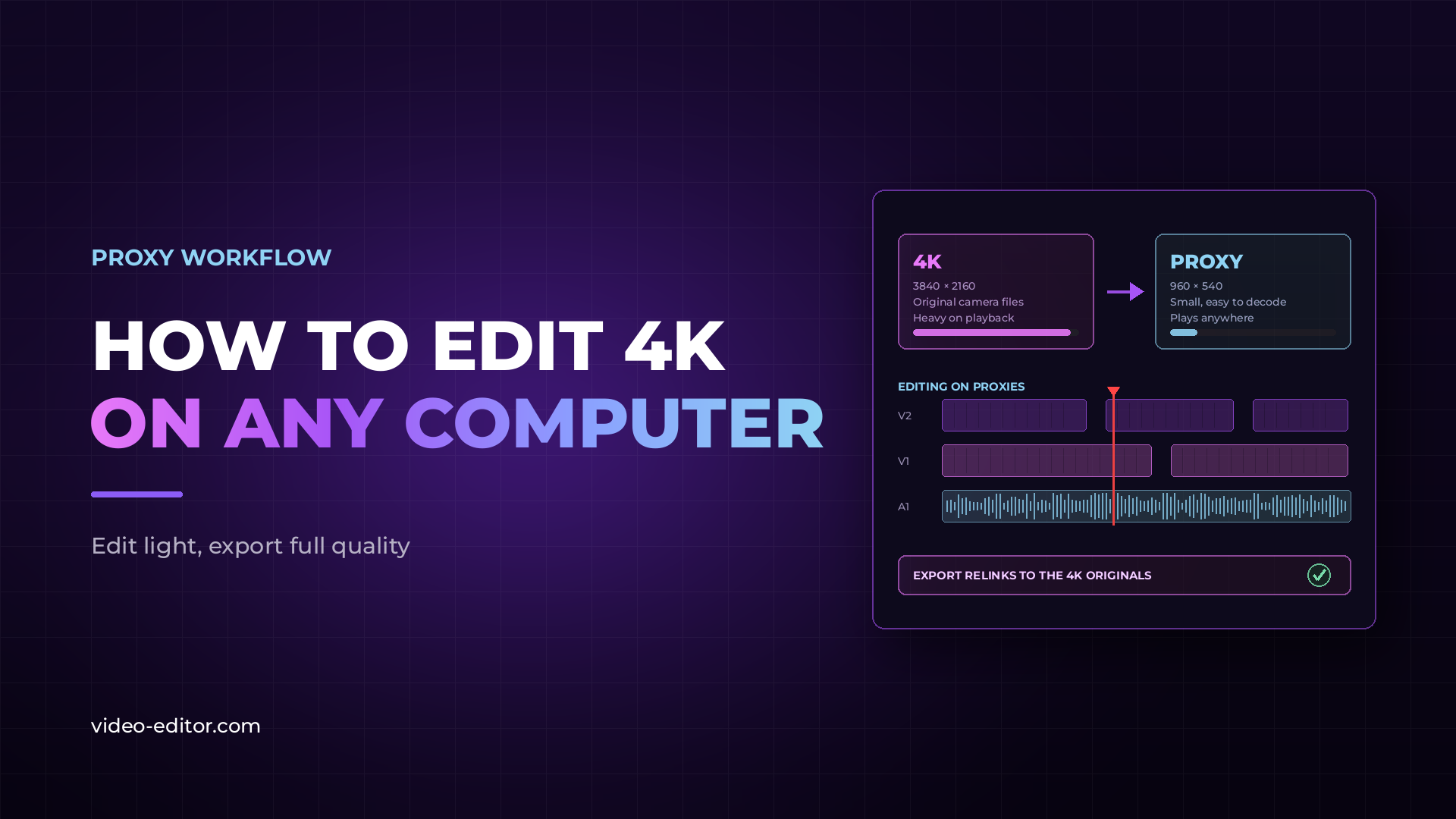
A proxy is a lower-resolution, lower-bitrate copy of your original footage, created specifically for editing. You cut your project using the proxies — which play back smoothly because they’re lightweight — and then relink to the original high-quality files when you’re ready to export.
The original files are never touched during editing. They sit on your drive untouched, waiting. When you export, your software reads from those originals and delivers at full quality.
This is not a workaround or a compromise — it’s a standard professional practice. Large productions, broadcast houses, and feature film post-production facilities all use proxy workflows. The tools built into Adobe Premiere and DaVinci Resolve are designed around it.
Not every project needs a proxy workflow. The deciding factor is whether your system can play back the footage in real time — and whether the lag is affecting your ability to make good editorial decisions.
If you’re unsure, check your playback frame rate indicator in your editing software. If it drops below your sequence frame rate during normal playback, proxies will improve your editing experience significantly.
Premiere has proxy creation built directly into the ingest workflow. You can create proxies automatically as footage is imported, or generate them from existing clips already in your project.
In the Program Monitor, click the wrench icon (Settings) and enable Toggle Proxies. This adds a button to your monitor toolbar. Click it to switch between proxy and full-resolution playback instantly — no relinking required.
Resolve offers more flexibility than Premiere for proxy generation — including a standalone proxy tool and a direct cache system built into the application.
Resolve 21 includes the Blackmagic Proxy Generator as a separate utility. You point it at a folder of footage, set your output format, and it generates proxies that Resolve automatically links when you open the project. This is particularly useful when you want to prepare proxies before the editor even starts the project.
For complex timelines with heavy effects and grades, Resolve’s render cache works alongside or instead of proxies. Enable it under Playback → Render Cache → Smart — Resolve caches clips in the background as you work, prioritizing the most complex sections.
Go to Playback menu and toggle Use Optimized Media if Available on or off. For export, Resolve always uses the original media unless you specifically instruct it otherwise.
Proxies aren’t just a smaller version of your footage — they usually come with a LUT baked in. That means instead of staring at flat, washed-out LOG material for hours while you cut, you get a proper-looking image to work with. Your original files stay untouched in LOG, ready for the colorist. You’re not color grading while you edit — you’re just not going blind doing it.
Choosing the right proxy format is the decision that affects your editing experience most directly. The goal is the smallest file size that still gives you clean, accurate playback and accurate color representation on your monitor.
| Codec | Best For | Notes |
|---|---|---|
| Apple ProRes Proxy | Mac users, high frame rate projects | Excellent quality, fast decode, larger file size |
| DNxHR LB | Windows, cross-platform teams | Avid’s lightweight codec, excellent performance |
| H.264 (low bitrate) | Maximum compatibility, small file sizes | Works everywhere, slightly slower decode than ProRes |
| Blackmagic RAW (3:1) | Resolve users with BRAW footage | Native format, GPU-accelerated, excellent quality |
| Original Footage | Recommended Proxy | Result |
|---|---|---|
| 4K (3840×2160) | 1920×1080 (½) | 4× smaller file, smooth on most machines |
| 6K (6144×3456) | 1920×1080 or 2048×1152 | 9× smaller, essential for older hardware |
| RAW (any resolution) | 1920×1080 | Converts complex RAW decode to simple playback |
| 1080p (problem files) | 960×540 (½) | For H.265 or heavily compressed files that struggle |
To understand why different codecs behave differently on your machine, read our complete guide to codecs and bitrate.
Where you store proxies affects how fast they generate and how smoothly they play back.
Never store proxies and originals in the same folder. Keep them in a clear, separate directory — ideally named /Proxies at the project root. This makes relinking straightforward and prevents accidentally deleting the wrong files.
If you’re working with a team that shares footage across a network, a NAS system changes the proxy workflow significantly. Here’s what professional NAS setups look like for video production teams.
On higher-end productions, you don’t even have to think about this. Cameras like the Sony VENICE, ARRI ALEXA, or Canon C300 Mark III can record proxies simultaneously to a separate card — H.264 or H.265 alongside RAW or LOG on the main card. By the time footage lands on the editor’s desk, proxies are already there. No transcoding, no waiting. Just load and cut.
This is where editors get nervous. The proxy workflow only works if your software correctly switches back to the original files at export. Both Premiere and Resolve handle this automatically — but you should know how each one works so you can verify it.
Before exporting, turn off the proxy toggle in your Program Monitor. Premiere exports from the original linked media automatically. You can confirm this in Export Settings — the source media path shown should reference your original files, not your proxy folder.
If a clip shows as offline or relinked incorrectly: select the clips in the Project panel, right-click → Proxy → Reconnect Full Resolution Media.
In the Deliver page, Resolve always exports from the original media unless you explicitly choose to export optimized media. Under Render Settings → Advanced Settings, confirm that Use Optimized Media is unchecked for final delivery.
If your proxy was created at a different aspect ratio than the original — for example, a 6K anamorphic source transcoded to a standard 16:9 proxy — your edit will look correct during cutting but the final export will crop or stretch. Always verify that the proxy inherits the exact aspect ratio of the source.
If you add new clips to an existing project mid-edit, those clips won’t automatically have proxies. Premiere’s auto-ingest covers this if enabled at the project level. In Resolve, you’ll need to manually select the new clips and generate optimized media.
This happens. The client receives a 540p export from a 4K shoot and nobody notices until it’s published. Always verify the export source before rendering. Build the proxy toggle check into your delivery checklist.
Proxies on a spinning HDD via USB 2.0 can be just as problematic as the original 4K files on the same drive. The proxy needs to read faster than it plays — this requires a minimum sustained read speed appropriate for your frame rate and codec.
A proxy created at nearly the same bitrate as the original defeats the purpose. If you’re creating a proxy from 4K RAW at high-quality ProRes 4444, you’ve gained nothing. Proxy quality should be clearly below the original — the goal is smooth editing, not a second master.
The proxy frame rate must exactly match the original. A 23.976fps original proxied at 24.000fps will cause drift — your edit points will gradually shift out of sync, especially on longer clips. Always confirm frame rate parity when creating proxies manually.
Q: Will using a proxy affect my final export quality?
No. Proxies are used only during editing. At export, both Premiere and Resolve read from the original full-resolution files. Your delivery is unaffected by the proxy quality.
Q: How much storage do proxies require?
Significantly less than originals. A 1-hour project in 4K RAW might require 500GB–1TB of source storage. The same project proxied to 1080p H.264 at 8–10 Mbps would require roughly 3–4GB. The ratio varies by codec and resolution, but a 90–95% reduction in storage is typical.
Q: Can I share proxies with another editor on a different machine?
Yes, and this is one of the most practical uses of the proxy workflow. The proxy files can be sent to a collaborator who edits with them. When the project returns, you relink to the originals on your system for the final grade and export. The edit data — cuts, transitions, effects — is stored in the project file, not in the footage itself.
Q: What is the difference between a proxy and optimized media in Resolve?
They serve the same purpose but are named differently. In Premiere, they’re called proxies. In Resolve, the equivalent is called optimized media. The Resolve Proxy Generator creates separate files that link automatically, while optimized media is managed internally within Resolve’s cache system.
Q: Do I need proxies if I use a hardware-accelerated GPU?
It depends on the footage. Modern GPUs handle H.264 and H.265 4K decoding very efficiently using hardware acceleration. But RAW formats, very high-bitrate footage, and complex multi-camera timelines can overwhelm even powerful GPUs. If playback is smooth, you don’t need proxies. If it isn’t, adding a GPU alone may not be enough.
Q: Can I create proxies for multicam sequences?
Yes — and for multicam projects, the proxy workflow is particularly valuable because the system is simultaneously decoding multiple high-resolution streams. Create proxies for each camera angle before assembling your multicam sequence, and your editing performance will improve dramatically. If you’re also dealing with sync across many cameras and microphones, read our complete guide to multicam sync.
Want more practical guides for working video editors? Browse the full blog.
 u
u u
u